> ## Documentation Index
> Fetch the complete documentation index at: https://docs.pixdeliver.com/llms.txt
> Use this file to discover all available pages before exploring further.
# Purchase requests and settlement
> Accept purchase requests, settle payments outside the app, and unlock photo originals
 ## Overview
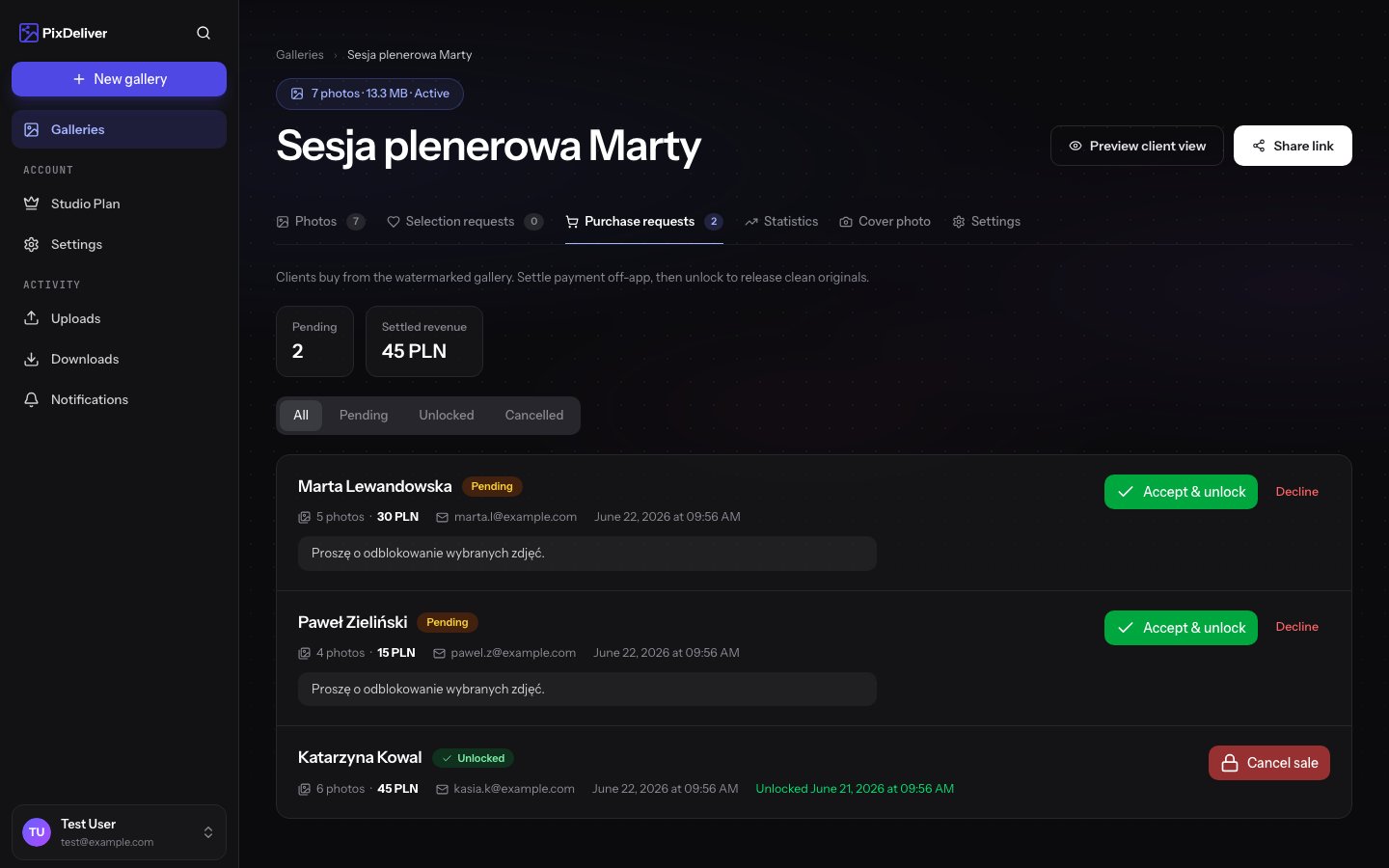
When a gallery runs in a paid mode, clients don't pay in the app — they submit a **purchase request**. You settle the payment outside PixDeliver and then unlock the clean originals. You manage all requests in the **Purchase requests** tab of the gallery in question.
Clients buy from a watermarked gallery. Settle the payment outside the app, then unlock the photos to give them the clean originals. PixDeliver **does not act as an intermediary** in this payment and **charges no commission**.
***
## How a client submits a request
1. The client browses the gallery with its watermarked previews
2. In **whole-gallery** mode they use the buy-the-whole-gallery button; in **individual-photo** mode they select the photos they want and see a price summary
3. They provide their **full name** (required) and, optionally, an **email address** and a **message**
4. They submit the request — this does not involve any payment in the app
For the client's perspective, see: [Buying photos](/en/client-guide/buying-photos).
***
## Where you see the requests
**Instructions:**
1. Open the gallery
2. Go to the **Purchase requests** tab
3. You'll see a list of requests (pending, settled, and canceled), newest first
You also receive an **in-app notification and an email** whenever a client submits a new request. The number of pending requests is shown next to the gallery.
Only **one** purchase request can be active in a gallery at a time (pending or settled). The next client has to wait until you settle or cancel the current request.
***
## Settlement and unlocking
**Instructions:**
1. Get in touch with the client and accept payment **outside the app** (bank transfer, BLIK, cash — however you prefer)
2. In the **Purchase requests** tab, open the pending request
3. Click **Accept & unlock**
4. Confirm in the dialog — you can check the option to notify the client by email
5. The photos are reprocessed back to clean originals (they may briefly show a "processing" status)
**Result:**
* **Whole gallery:** all photos are unlocked — including any added after the sale
* **Individual photos:** only the purchased photos are unlocked; **only those** are visible on the public gallery page
If the client provided an email and you check the notification option, they receive a **"Your photos are ready"** message with a link to the gallery.
***
## Rejecting and canceling a sale
**Rejecting a pending request** — if the payment didn't go through, reject the request. Nothing gets unlocked.
**Canceling a settled sale** — you can undo a sale that has already been unlocked:
1. Open the settled request
2. Click **Cancel sale** and confirm
Canceling a sale **re-applies the watermark and locks** the photos again. The client **loses access** to the originals. If you check the notification option, the client receives an **"Update regarding your photo request"** email.
***
## Emails to the client
| Event | Email to the client (if they provided an address) |
| ------------------------ | --------------------------------------------------------------------------------------------- |
| Photos unlocked | "Your photos are ready" — with a link to the gallery and a note about access to the originals |
| Cancellation / rejection | "Update regarding your photo request" — a note that the request was canceled |
Sending an email to the client is optional — you decide when you accept or cancel (the "notify the buyer" option). If the client didn't provide an email address, no notification is sent.
***
## Your responsibilities toward the client
Selling photos is a transaction **between you and the client**. PixDeliver only provides the technical tooling (watermark, accepting requests, locking and unlocking). You are solely responsible for the settlement, any refunds, and your information, consumer, and tax obligations toward the client. For details, see: [Terms of Service](/en/legal/terms-of-service) (§ 18).
***
## Troubleshooting
**Problem:** The client can't submit a request — "a request is already pending". **Solution:** The gallery already has an active purchase request. Settle or cancel it to free up the gallery for the next client.
**Problem:** The client didn't get the unlock email. **Solution:** Check whether the client provided an email address and whether the notification option was checked when you accepted. You can also send the gallery link yourself.
**Problem:** After cancellation, the client still says they have the photos. **Solution:** The lock applies to access within the gallery — any files the client downloaded before the cancellation remain on their device. Cancel a sale as soon as possible if the payment doesn't come through.
***
## Related topics
* [Selling galleries](/en/delivery-and-sales/selling-galleries) - Delivery modes, watermark, and pricing
* [Buying photos (for the client)](/en/client-guide/buying-photos) - What a purchase request looks like for the client
* [Terms of Service](/en/legal/terms-of-service) - Rules for sales and settlement (§ 18)
## Overview
When a gallery runs in a paid mode, clients don't pay in the app — they submit a **purchase request**. You settle the payment outside PixDeliver and then unlock the clean originals. You manage all requests in the **Purchase requests** tab of the gallery in question.
Clients buy from a watermarked gallery. Settle the payment outside the app, then unlock the photos to give them the clean originals. PixDeliver **does not act as an intermediary** in this payment and **charges no commission**.
***
## How a client submits a request
1. The client browses the gallery with its watermarked previews
2. In **whole-gallery** mode they use the buy-the-whole-gallery button; in **individual-photo** mode they select the photos they want and see a price summary
3. They provide their **full name** (required) and, optionally, an **email address** and a **message**
4. They submit the request — this does not involve any payment in the app
For the client's perspective, see: [Buying photos](/en/client-guide/buying-photos).
***
## Where you see the requests
**Instructions:**
1. Open the gallery
2. Go to the **Purchase requests** tab
3. You'll see a list of requests (pending, settled, and canceled), newest first
You also receive an **in-app notification and an email** whenever a client submits a new request. The number of pending requests is shown next to the gallery.
Only **one** purchase request can be active in a gallery at a time (pending or settled). The next client has to wait until you settle or cancel the current request.
***
## Settlement and unlocking
**Instructions:**
1. Get in touch with the client and accept payment **outside the app** (bank transfer, BLIK, cash — however you prefer)
2. In the **Purchase requests** tab, open the pending request
3. Click **Accept & unlock**
4. Confirm in the dialog — you can check the option to notify the client by email
5. The photos are reprocessed back to clean originals (they may briefly show a "processing" status)
**Result:**
* **Whole gallery:** all photos are unlocked — including any added after the sale
* **Individual photos:** only the purchased photos are unlocked; **only those** are visible on the public gallery page
If the client provided an email and you check the notification option, they receive a **"Your photos are ready"** message with a link to the gallery.
***
## Rejecting and canceling a sale
**Rejecting a pending request** — if the payment didn't go through, reject the request. Nothing gets unlocked.
**Canceling a settled sale** — you can undo a sale that has already been unlocked:
1. Open the settled request
2. Click **Cancel sale** and confirm
Canceling a sale **re-applies the watermark and locks** the photos again. The client **loses access** to the originals. If you check the notification option, the client receives an **"Update regarding your photo request"** email.
***
## Emails to the client
| Event | Email to the client (if they provided an address) |
| ------------------------ | --------------------------------------------------------------------------------------------- |
| Photos unlocked | "Your photos are ready" — with a link to the gallery and a note about access to the originals |
| Cancellation / rejection | "Update regarding your photo request" — a note that the request was canceled |
Sending an email to the client is optional — you decide when you accept or cancel (the "notify the buyer" option). If the client didn't provide an email address, no notification is sent.
***
## Your responsibilities toward the client
Selling photos is a transaction **between you and the client**. PixDeliver only provides the technical tooling (watermark, accepting requests, locking and unlocking). You are solely responsible for the settlement, any refunds, and your information, consumer, and tax obligations toward the client. For details, see: [Terms of Service](/en/legal/terms-of-service) (§ 18).
***
## Troubleshooting
**Problem:** The client can't submit a request — "a request is already pending". **Solution:** The gallery already has an active purchase request. Settle or cancel it to free up the gallery for the next client.
**Problem:** The client didn't get the unlock email. **Solution:** Check whether the client provided an email address and whether the notification option was checked when you accepted. You can also send the gallery link yourself.
**Problem:** After cancellation, the client still says they have the photos. **Solution:** The lock applies to access within the gallery — any files the client downloaded before the cancellation remain on their device. Cancel a sale as soon as possible if the payment doesn't come through.
***
## Related topics
* [Selling galleries](/en/delivery-and-sales/selling-galleries) - Delivery modes, watermark, and pricing
* [Buying photos (for the client)](/en/client-guide/buying-photos) - What a purchase request looks like for the client
* [Terms of Service](/en/legal/terms-of-service) - Rules for sales and settlement (§ 18)