> ## Documentation Index
> Fetch the complete documentation index at: https://docs.pixdeliver.com/llms.txt
> Use this file to discover all available pages before exploring further.
# Account settings
> Manage your profile, subdomain, password, passkeys, and account preferences
 ## Overview
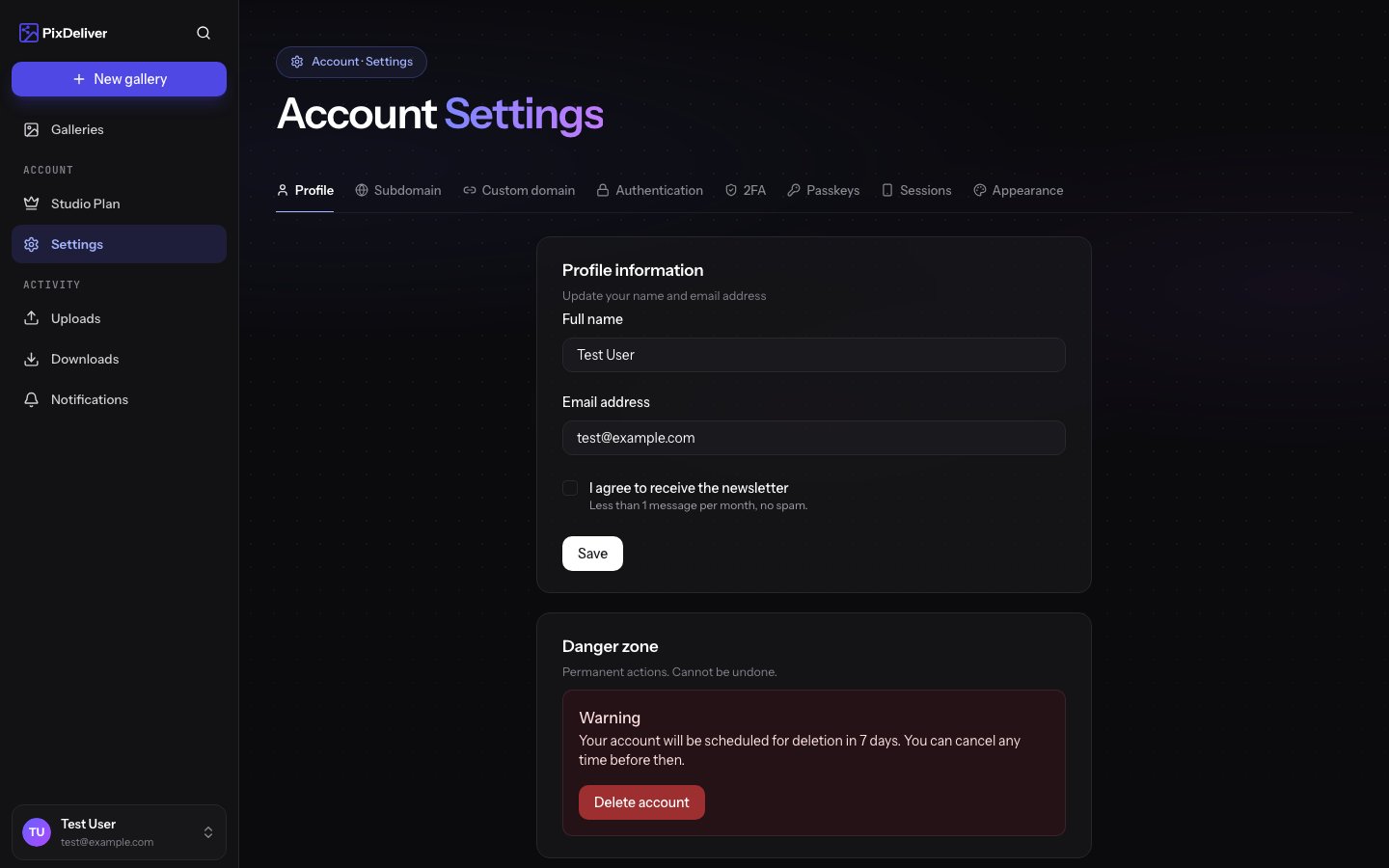
The account settings panel lets you fully personalize your profile, configure your own subdomain, change your password, and customize the look of the interface. All settings are available from the dashboard.
***
## Accessing settings
**Instructions:**
1. Log in to your PixDeliver account
2. Click your **username** or **avatar** in the top right corner
3. Select **Settings** from the dropdown menu
4. You'll see a menu with the different settings sections
***
## Profile settings
The **Profile** panel is the main settings tab, where you can configure your name, email, subdomain, and interface language — and where you'll also find the delete account button.
### Editing personal details
**Instructions:**
1. In the settings menu, select **Profile**
2. Update the fields you want to change:
* **Full name** - the name shown in the system
* **Email address** - your contact email (also used to log in)
3. Click **Save changes**
**Result:** Your details will be updated in the system.
**Changing your email address:** After you change your email, you'll receive a verification message at the new address. You must confirm the change by clicking the link in the email. Addresses from "temporary email" domains are blocked.
***
### Setting up a subdomain
A subdomain is your own personal space within PixDeliver. Instead of sharing galleries at `pixdeliver.com/g/gallery-name`, you can use `your-name.pixdeliver.com/gallery-name`.
The **Subdomain** field is located on the **Profile** tab — right below the name and email fields. Enter the name you want and save — the system checks availability in real time.
**Name requirements:**
* Length: 3-63 characters
* Allowed: lowercase letters (a-z), digits (0-9), hyphens (-)
* Cannot start or end with a hyphen
* Must be unique across the entire system
* Reserved words are not allowed (including `www`, `api`, `admin`, `mail`, `app`, `cdn`, `dev`, `test`, `dashboard`)
To remove your subdomain, clear the field and save — your galleries will revert to the standard `pixdeliver.com/g/...` addresses.
Changing your subdomain immediately breaks all previously shared links that used the old name.
You'll find a complete guide to subdomains — addressing, limits, changing, and removing — in: [Custom subdomain](/en/sharing/subdomains).
### Interface language
The **Profile** tab also has an **Interface language** dropdown (options: Polish, English). After you change it and save, the interface reloads in the selected language.
***
## Changing your password
### Standard password change
**Instructions:**
1. Go to **Settings** → **Authentication**
2. Enter your **current password**
3. Enter your **new password** (at least 8 characters)
4. Confirm the new password in the **Confirm password** field
5. Click **Change password**
**Result:** Your password will be changed immediately. Use the new password the next time you log in.
**A strong password should include:**
* At least 8 characters (12+ recommended)
* Uppercase and lowercase letters
* Numbers
* Special characters (!@#\$%^&\*)
* It should not be a dictionary word
### Password reset (when you've forgotten your password)
**Instructions:**
1. On the login page, click **Forgot your password?**
2. Enter your email address
3. Click **Send reset link**
4. Open the email from PixDeliver
5. Click the password reset link
6. Set a new password
7. Log in using the new password
***
## Appearance preferences
### Interface theme
**Instructions:**
1. Go to **Settings** → **Appearance**
2. Choose your preferred theme:
* **Light** - the classic, bright interface
* **Dark** - a dark interface that's easy on the eyes
* **Automatic** - adapts to your system settings
3. The change is instant (no need to save)
**Result:** The PixDeliver interface will switch its color scheme to match your choice.
***
## Two-factor authentication (2FA)
Enable an extra layer of security for your account.
**Instructions:**
1. Go to **Settings** → **2FA**
2. Click **Enable two-factor authentication**
3. Download an authenticator app to your phone (such as Google Authenticator, Microsoft Authenticator, or Authy)
4. Scan the QR code shown on screen
5. Enter the 6-digit code from the app
6. Save your **backup codes** in a safe place (a file or password manager)
7. Click **Confirm and enable**
**Result:** Every time you log in, you'll need to enter a code from your authenticator app.
**Save your backup codes!** If you lose access to your phone, the backup codes will be the only way to regain access to your account.
### Disabling 2FA
**Instructions:**
1. Go to **Settings** → **2FA**
2. Click **Disable two-factor authentication**
3. Enter a code from your authenticator app or a backup code
4. Confirm that you want to disable it
***
## Passkeys
Passkeys let you log in securely with your device's fingerprint, face, or screen lock — instead of a password.
### Adding a passkey
**Instructions:**
1. Go to **Settings** → **Passkeys**
2. Click **Add passkey**
3. Enter a name for the passkey (such as "MacBook Pro" or "iPhone") — this will help you recognize it later
4. Click **Register passkey**
5. Confirm on your device (fingerprint, face, PIN, or hardware key)
**Result:** The passkey appears in the list. From now on, you can log in without a password.
### Logging in with a passkey
On the login page, click **Log in with a passkey** and confirm on your device. A passkey can also be used to confirm your identity during sensitive operations (the **Confirm with passkey** button).
### Managing passkeys
The passkey list shows each passkey's name along with the date it was added and last used. To remove a passkey, click the trash icon and confirm — it can no longer be used to log in.
Passkeys work on devices and browsers that support them. If your browser doesn't support them, you'll see a message — use your password instead in that case.
You can combine passkeys with a password, Google login, and 2FA. Add a passkey on each of your devices so you always have a fast way to log in.
***
## Active browser sessions
The **Settings** → **Sessions** tab shows all the devices and browsers where you're currently logged in.
**What you can do:**
* See the browser, operating system, and location (based on IP) of each session
* **Log out a single session** — click the button next to a device
* **Log out all other sessions** — useful after changing your password or losing a device
***
## Linking with your Google account
If you signed up with Google, you can **disconnect** your Google account from your PixDeliver profile at any time — after that, future logins will require a standard email and password.
Before disconnecting your Google account, make sure you've **set a password** for your PixDeliver account (**Settings** → **Authentication**). Otherwise, you'll lose your only login method.
***
## Deleting your account
If you want to delete your account and all your data:
**Instructions:**
1. Go to **Settings** → **Profile**
2. Scroll to the bottom of the page to the **Delete account** section
3. Click **Delete account**
4. Read the information about the consequences of deletion
5. Enter your password to confirm
6. Confirm the deletion
**Result:** Your account enters a **7-day grace period** before it's permanently deleted.
### Grace period (7 days)
After you confirm account deletion:
* Your account is locked — you can no longer manage galleries or view the dashboard
* Public galleries become unavailable to clients
* You receive an email confirming the scheduled deletion
* You have **7 days to change your mind**
### Canceling the deletion
Within those 7 days, you can cancel the deletion and regain full access to your account:
1. Log in again — you'll see the **Account pending deletion** page
2. Click **Cancel account deletion**
3. Your account is fully active again — your galleries and data are untouched
**After the 7-day grace period ends**, your account, all galleries, photos, statistics, and related data are **permanently deleted** and cannot be recovered.
***
## Tips and best practices
✅ **Recommended:**
* Set a professional subdomain using your full name or company name
* Enable two-factor authentication
* Add a passkey for fast, secure, password-free login
* Update your password regularly (every 3-6 months)
* Store your 2FA backup codes in a safe place
* Use a professional email address (ideally on your own domain)
* Enable notifications about expiring galleries
❌ **Avoid:**
* Using a subdomain with special characters or hard-to-remember strings
* Disabling all email notifications
* Sharing your login details with others
* Deleting your account without first downloading any important photos
***
## Troubleshooting
**Problem:** The subdomain is already taken. **Solution:**
* Try adding characters or a middle initial (for example, jan-kowalski-foto or jkowalski)
* Use your company name instead of your name
* Add your specialty (for example, kowalski-wesela or kowalski-photo)
**Problem:** I can't log in after enabling 2FA. **Solution:**
* Make sure you're entering the current code from the app (codes are valid for 30 seconds)
* Check that the **time on your phone** is synced
* Use one of your backup codes to disable 2FA, then try setting it up again.
***
## Related topics
* [Creating an account](/en/getting-started/create-account) - How to create a PixDeliver account
* [Custom subdomain](/en/sharing/subdomains) - A complete guide to subdomains
* [Creating a gallery](/en/managing-galleries/create-gallery) - How to create your first gallery
## Overview
The account settings panel lets you fully personalize your profile, configure your own subdomain, change your password, and customize the look of the interface. All settings are available from the dashboard.
***
## Accessing settings
**Instructions:**
1. Log in to your PixDeliver account
2. Click your **username** or **avatar** in the top right corner
3. Select **Settings** from the dropdown menu
4. You'll see a menu with the different settings sections
***
## Profile settings
The **Profile** panel is the main settings tab, where you can configure your name, email, subdomain, and interface language — and where you'll also find the delete account button.
### Editing personal details
**Instructions:**
1. In the settings menu, select **Profile**
2. Update the fields you want to change:
* **Full name** - the name shown in the system
* **Email address** - your contact email (also used to log in)
3. Click **Save changes**
**Result:** Your details will be updated in the system.
**Changing your email address:** After you change your email, you'll receive a verification message at the new address. You must confirm the change by clicking the link in the email. Addresses from "temporary email" domains are blocked.
***
### Setting up a subdomain
A subdomain is your own personal space within PixDeliver. Instead of sharing galleries at `pixdeliver.com/g/gallery-name`, you can use `your-name.pixdeliver.com/gallery-name`.
The **Subdomain** field is located on the **Profile** tab — right below the name and email fields. Enter the name you want and save — the system checks availability in real time.
**Name requirements:**
* Length: 3-63 characters
* Allowed: lowercase letters (a-z), digits (0-9), hyphens (-)
* Cannot start or end with a hyphen
* Must be unique across the entire system
* Reserved words are not allowed (including `www`, `api`, `admin`, `mail`, `app`, `cdn`, `dev`, `test`, `dashboard`)
To remove your subdomain, clear the field and save — your galleries will revert to the standard `pixdeliver.com/g/...` addresses.
Changing your subdomain immediately breaks all previously shared links that used the old name.
You'll find a complete guide to subdomains — addressing, limits, changing, and removing — in: [Custom subdomain](/en/sharing/subdomains).
### Interface language
The **Profile** tab also has an **Interface language** dropdown (options: Polish, English). After you change it and save, the interface reloads in the selected language.
***
## Changing your password
### Standard password change
**Instructions:**
1. Go to **Settings** → **Authentication**
2. Enter your **current password**
3. Enter your **new password** (at least 8 characters)
4. Confirm the new password in the **Confirm password** field
5. Click **Change password**
**Result:** Your password will be changed immediately. Use the new password the next time you log in.
**A strong password should include:**
* At least 8 characters (12+ recommended)
* Uppercase and lowercase letters
* Numbers
* Special characters (!@#\$%^&\*)
* It should not be a dictionary word
### Password reset (when you've forgotten your password)
**Instructions:**
1. On the login page, click **Forgot your password?**
2. Enter your email address
3. Click **Send reset link**
4. Open the email from PixDeliver
5. Click the password reset link
6. Set a new password
7. Log in using the new password
***
## Appearance preferences
### Interface theme
**Instructions:**
1. Go to **Settings** → **Appearance**
2. Choose your preferred theme:
* **Light** - the classic, bright interface
* **Dark** - a dark interface that's easy on the eyes
* **Automatic** - adapts to your system settings
3. The change is instant (no need to save)
**Result:** The PixDeliver interface will switch its color scheme to match your choice.
***
## Two-factor authentication (2FA)
Enable an extra layer of security for your account.
**Instructions:**
1. Go to **Settings** → **2FA**
2. Click **Enable two-factor authentication**
3. Download an authenticator app to your phone (such as Google Authenticator, Microsoft Authenticator, or Authy)
4. Scan the QR code shown on screen
5. Enter the 6-digit code from the app
6. Save your **backup codes** in a safe place (a file or password manager)
7. Click **Confirm and enable**
**Result:** Every time you log in, you'll need to enter a code from your authenticator app.
**Save your backup codes!** If you lose access to your phone, the backup codes will be the only way to regain access to your account.
### Disabling 2FA
**Instructions:**
1. Go to **Settings** → **2FA**
2. Click **Disable two-factor authentication**
3. Enter a code from your authenticator app or a backup code
4. Confirm that you want to disable it
***
## Passkeys
Passkeys let you log in securely with your device's fingerprint, face, or screen lock — instead of a password.
### Adding a passkey
**Instructions:**
1. Go to **Settings** → **Passkeys**
2. Click **Add passkey**
3. Enter a name for the passkey (such as "MacBook Pro" or "iPhone") — this will help you recognize it later
4. Click **Register passkey**
5. Confirm on your device (fingerprint, face, PIN, or hardware key)
**Result:** The passkey appears in the list. From now on, you can log in without a password.
### Logging in with a passkey
On the login page, click **Log in with a passkey** and confirm on your device. A passkey can also be used to confirm your identity during sensitive operations (the **Confirm with passkey** button).
### Managing passkeys
The passkey list shows each passkey's name along with the date it was added and last used. To remove a passkey, click the trash icon and confirm — it can no longer be used to log in.
Passkeys work on devices and browsers that support them. If your browser doesn't support them, you'll see a message — use your password instead in that case.
You can combine passkeys with a password, Google login, and 2FA. Add a passkey on each of your devices so you always have a fast way to log in.
***
## Active browser sessions
The **Settings** → **Sessions** tab shows all the devices and browsers where you're currently logged in.
**What you can do:**
* See the browser, operating system, and location (based on IP) of each session
* **Log out a single session** — click the button next to a device
* **Log out all other sessions** — useful after changing your password or losing a device
***
## Linking with your Google account
If you signed up with Google, you can **disconnect** your Google account from your PixDeliver profile at any time — after that, future logins will require a standard email and password.
Before disconnecting your Google account, make sure you've **set a password** for your PixDeliver account (**Settings** → **Authentication**). Otherwise, you'll lose your only login method.
***
## Deleting your account
If you want to delete your account and all your data:
**Instructions:**
1. Go to **Settings** → **Profile**
2. Scroll to the bottom of the page to the **Delete account** section
3. Click **Delete account**
4. Read the information about the consequences of deletion
5. Enter your password to confirm
6. Confirm the deletion
**Result:** Your account enters a **7-day grace period** before it's permanently deleted.
### Grace period (7 days)
After you confirm account deletion:
* Your account is locked — you can no longer manage galleries or view the dashboard
* Public galleries become unavailable to clients
* You receive an email confirming the scheduled deletion
* You have **7 days to change your mind**
### Canceling the deletion
Within those 7 days, you can cancel the deletion and regain full access to your account:
1. Log in again — you'll see the **Account pending deletion** page
2. Click **Cancel account deletion**
3. Your account is fully active again — your galleries and data are untouched
**After the 7-day grace period ends**, your account, all galleries, photos, statistics, and related data are **permanently deleted** and cannot be recovered.
***
## Tips and best practices
✅ **Recommended:**
* Set a professional subdomain using your full name or company name
* Enable two-factor authentication
* Add a passkey for fast, secure, password-free login
* Update your password regularly (every 3-6 months)
* Store your 2FA backup codes in a safe place
* Use a professional email address (ideally on your own domain)
* Enable notifications about expiring galleries
❌ **Avoid:**
* Using a subdomain with special characters or hard-to-remember strings
* Disabling all email notifications
* Sharing your login details with others
* Deleting your account without first downloading any important photos
***
## Troubleshooting
**Problem:** The subdomain is already taken. **Solution:**
* Try adding characters or a middle initial (for example, jan-kowalski-foto or jkowalski)
* Use your company name instead of your name
* Add your specialty (for example, kowalski-wesela or kowalski-photo)
**Problem:** I can't log in after enabling 2FA. **Solution:**
* Make sure you're entering the current code from the app (codes are valid for 30 seconds)
* Check that the **time on your phone** is synced
* Use one of your backup codes to disable 2FA, then try setting it up again.
***
## Related topics
* [Creating an account](/en/getting-started/create-account) - How to create a PixDeliver account
* [Custom subdomain](/en/sharing/subdomains) - A complete guide to subdomains
* [Creating a gallery](/en/managing-galleries/create-gallery) - How to create your first gallery