> ## Documentation Index
> Fetch the complete documentation index at: https://docs.pixdeliver.com/llms.txt
> Use this file to discover all available pages before exploring further.
# Creating an account
> Learn how to create a PixDeliver account and start using the platform
 ## Overview
Creating a PixDeliver account is the first step toward delivering your photos to clients professionally. The whole signup process takes less than a minute and doesn't require credit card details.
## Step by step
### 1. Go to the signup page
**Instructions:**
1. Open [pixdeliver.com](https://pixdeliver.com) in your browser
2. Click the **Sign up** button in the top right corner
3. You'll be redirected to the registration form
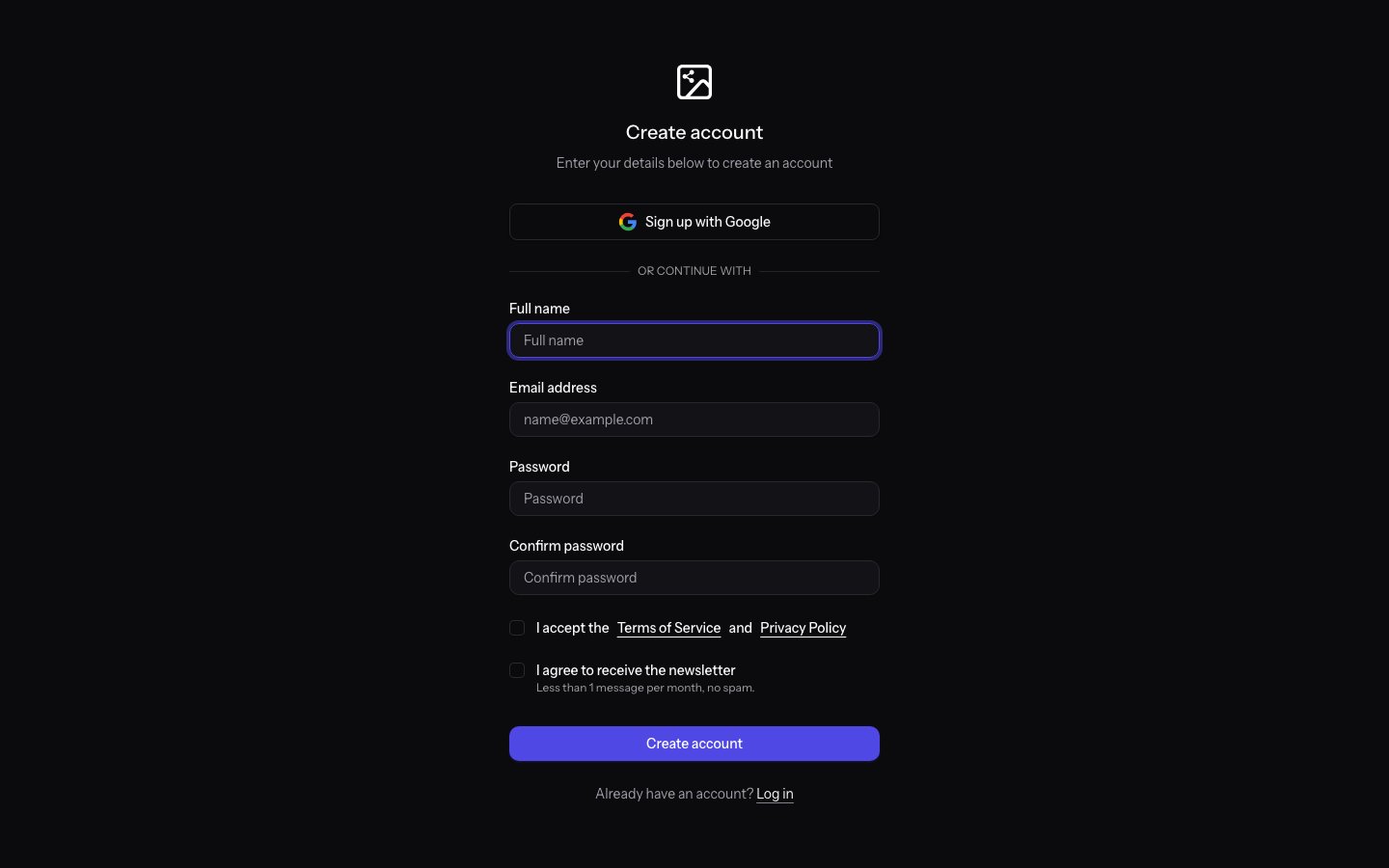
**Result:** You'll see the registration form with fields to fill in.
***
### 2. Choose a signup method
You can create an account in two ways:
**Option A: Sign up with Google**
1. Click the **Sign up with Google** button
2. Select your Google account and approve the permissions
3. Your account will be created automatically
**Result:** The account is active right away — no email verification or password setup required.
***
**Option B: Sign up with email and password**
1. Enter your **full name** in the "Name" field
2. Enter your **email address** - this will be your login
3. Choose a **strong password** (at least 8 characters)
4. Confirm the password in the "Confirm password" field
5. Accept the terms of service (after reading them)
6. Click the **Create account** button
**Result:** The system will create your account and send a verification email to the address you provided.
**Important:** Your password must be at least 8 characters long. We recommend using a combination of letters, numbers, and special characters for better security.
**Disposable email addresses are blocked.** Signing up with a popular "temporary email" service (for example, for one-off verification) will fail — use a permanent personal or business email address. The same rule applies when changing your email address after signing up.
***
### 3. Verify your email address
Email verification usually isn't required. Sometimes, for example if your traffic is suspected to be from a bot, you may be asked to verify your email address.
**Instructions:**
1. Open your inbox
2. Find the message from PixDeliver with the subject "Confirm your email address"
3. Click the verification link in the message
4. You'll be redirected back to PixDeliver
**Result:** Your account will be activated and you'll be able to log in.
Don't see the email? Check your Spam or Promotions folder. You can also request the verification link to be sent again.
***
### 4. First login
**Instructions:**
* If you signed up with Google: click **Log in with Google** and select your account.
* If you signed up with email: enter your **email address** and **password**, then click **Log in**.
**Result:** You'll be taken to the dashboard, where you can start creating galleries.
***
## What you get after signing up
Once you create an account, you'll have immediate access to:
* **The management dashboard** - manage galleries, photos, and settings
* **The ability to create galleries** - with no limits (you only pay for activated galleries)
* **Your own subdomain** - the option to set a custom name (for example, your-name.pixdeliver.com)
* **Statistics and analytics** - full tracking of views and downloads
* **Selection forms** - let your clients pick their favorite photos
You only pay when you activate a gallery to upload photos and share it with clients. Creating an account is free.
***
## Setting up two-factor authentication (optional)
For extra account security, you can enable two-factor authentication (2FA).
**Instructions:**
1. After logging in, go to **Settings** → **Security**
2. Click **Enable two-factor authentication**
3. Scan the QR code in an authenticator app (such as Google Authenticator or Authy)
4. Enter the code from the app to confirm the setup
5. Save your backup codes in a safe place
**Result:** Every time you log in, you'll need to enter a code from your authenticator app.
**We recommend enabling 2FA** - it adds an extra layer of protection for your account and your clients' galleries.
***
## Tips and best practices
✅ **Recommended:**
* Use a strong, unique password for your PixDeliver account
* Enable two-factor authentication for better security
* Save your login details in a password manager
* Use a professional email address (ideally on your own domain)
* Store your 2FA backup codes in a safe place
❌ **Avoid:**
* Using the same password as on other services
* Sharing your login details with others
* Saving your password in unsecured notes
* Ignoring the verification email
***
## Troubleshooting
**Problem:** I didn't receive the verification email. **Solution:**
1. Check the Spam and Promotions folders in your inbox
2. Make sure you entered the correct email address
3. Wait a few minutes - email delivery sometimes takes a little longer
4. Use the "Resend verification email" option on the login page
**Problem:** I forgot my password. **Solution:**
1. On the login page, click **Forgot your password?**
2. Enter your email address
3. Click **Send reset link**
4. Open the email from PixDeliver and click the link
5. Set a new password
**Problem:** This email is already registered. **Solution:**
1. Check whether you already have a PixDeliver account
2. Use the **Forgot your password?** feature to regain access
3. If that doesn't help, contact support
***
## Related topics
* [Account settings](/en/getting-started/account-settings) - Learn how to set up your profile and subdomain
* [Creating your first gallery](/en/managing-galleries/create-gallery) - The next step after signing up
## Overview
Creating a PixDeliver account is the first step toward delivering your photos to clients professionally. The whole signup process takes less than a minute and doesn't require credit card details.
## Step by step
### 1. Go to the signup page
**Instructions:**
1. Open [pixdeliver.com](https://pixdeliver.com) in your browser
2. Click the **Sign up** button in the top right corner
3. You'll be redirected to the registration form
**Result:** You'll see the registration form with fields to fill in.
***
### 2. Choose a signup method
You can create an account in two ways:
**Option A: Sign up with Google**
1. Click the **Sign up with Google** button
2. Select your Google account and approve the permissions
3. Your account will be created automatically
**Result:** The account is active right away — no email verification or password setup required.
***
**Option B: Sign up with email and password**
1. Enter your **full name** in the "Name" field
2. Enter your **email address** - this will be your login
3. Choose a **strong password** (at least 8 characters)
4. Confirm the password in the "Confirm password" field
5. Accept the terms of service (after reading them)
6. Click the **Create account** button
**Result:** The system will create your account and send a verification email to the address you provided.
**Important:** Your password must be at least 8 characters long. We recommend using a combination of letters, numbers, and special characters for better security.
**Disposable email addresses are blocked.** Signing up with a popular "temporary email" service (for example, for one-off verification) will fail — use a permanent personal or business email address. The same rule applies when changing your email address after signing up.
***
### 3. Verify your email address
Email verification usually isn't required. Sometimes, for example if your traffic is suspected to be from a bot, you may be asked to verify your email address.
**Instructions:**
1. Open your inbox
2. Find the message from PixDeliver with the subject "Confirm your email address"
3. Click the verification link in the message
4. You'll be redirected back to PixDeliver
**Result:** Your account will be activated and you'll be able to log in.
Don't see the email? Check your Spam or Promotions folder. You can also request the verification link to be sent again.
***
### 4. First login
**Instructions:**
* If you signed up with Google: click **Log in with Google** and select your account.
* If you signed up with email: enter your **email address** and **password**, then click **Log in**.
**Result:** You'll be taken to the dashboard, where you can start creating galleries.
***
## What you get after signing up
Once you create an account, you'll have immediate access to:
* **The management dashboard** - manage galleries, photos, and settings
* **The ability to create galleries** - with no limits (you only pay for activated galleries)
* **Your own subdomain** - the option to set a custom name (for example, your-name.pixdeliver.com)
* **Statistics and analytics** - full tracking of views and downloads
* **Selection forms** - let your clients pick their favorite photos
You only pay when you activate a gallery to upload photos and share it with clients. Creating an account is free.
***
## Setting up two-factor authentication (optional)
For extra account security, you can enable two-factor authentication (2FA).
**Instructions:**
1. After logging in, go to **Settings** → **Security**
2. Click **Enable two-factor authentication**
3. Scan the QR code in an authenticator app (such as Google Authenticator or Authy)
4. Enter the code from the app to confirm the setup
5. Save your backup codes in a safe place
**Result:** Every time you log in, you'll need to enter a code from your authenticator app.
**We recommend enabling 2FA** - it adds an extra layer of protection for your account and your clients' galleries.
***
## Tips and best practices
✅ **Recommended:**
* Use a strong, unique password for your PixDeliver account
* Enable two-factor authentication for better security
* Save your login details in a password manager
* Use a professional email address (ideally on your own domain)
* Store your 2FA backup codes in a safe place
❌ **Avoid:**
* Using the same password as on other services
* Sharing your login details with others
* Saving your password in unsecured notes
* Ignoring the verification email
***
## Troubleshooting
**Problem:** I didn't receive the verification email. **Solution:**
1. Check the Spam and Promotions folders in your inbox
2. Make sure you entered the correct email address
3. Wait a few minutes - email delivery sometimes takes a little longer
4. Use the "Resend verification email" option on the login page
**Problem:** I forgot my password. **Solution:**
1. On the login page, click **Forgot your password?**
2. Enter your email address
3. Click **Send reset link**
4. Open the email from PixDeliver and click the link
5. Set a new password
**Problem:** This email is already registered. **Solution:**
1. Check whether you already have a PixDeliver account
2. Use the **Forgot your password?** feature to regain access
3. If that doesn't help, contact support
***
## Related topics
* [Account settings](/en/getting-started/account-settings) - Learn how to set up your profile and subdomain
* [Creating your first gallery](/en/managing-galleries/create-gallery) - The next step after signing up