> ## Documentation Index
> Fetch the complete documentation index at: https://docs.pixdeliver.com/llms.txt
> Use this file to discover all available pages before exploring further.
# Sharing a selection
> Learn how to send a selection form to your clients
 ## Overview
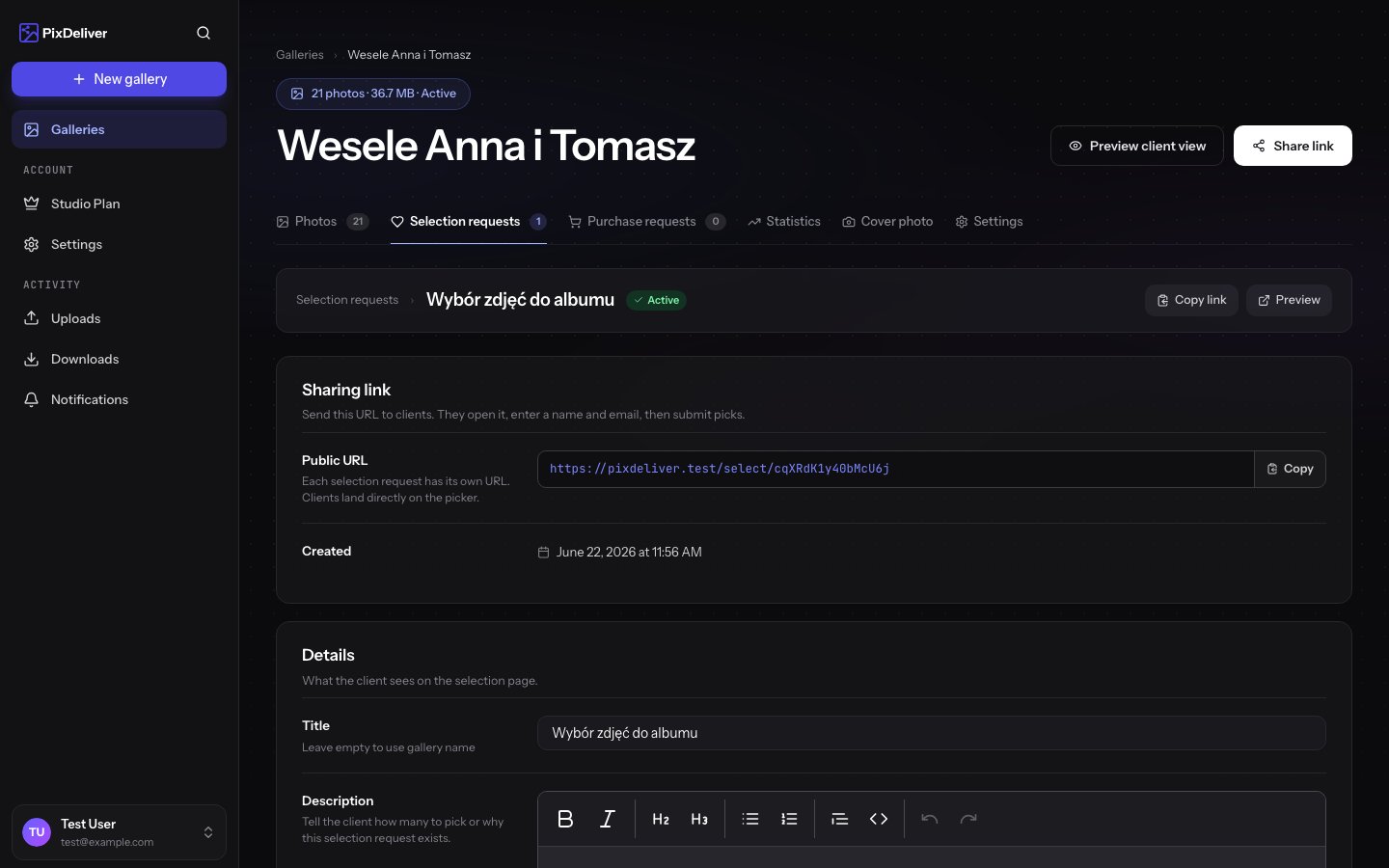
Once you've created a selection form, you get a unique link you can send to your clients. Clients open this link, mark their favorite photos directly in the gallery, and submit their selection. You get an instant notification of every new submission.
***
## The selection link format
Every selection request has its own unique link made up of a token (16 characters).
### Basic link
```
https://pixdeliver.com/select/[16-character-token]
```
**Example:**
```
https://pixdeliver.com/select/a8k3mp9xq2n4r7v1
```
### Link with a subdomain
If you have a subdomain configured:
```
https://[your-subdomain].pixdeliver.com/select/[token]
```
**Example:**
```
https://jan-kowalski.pixdeliver.com/select/a8k3mp9xq2n4r7v1
```
Both links lead to the same selection form. You can use either one - the subdomain looks more professional.
***
## Copying the selection link
**Instructions:**
1. Go to the **Selection requests** section in the gallery
2. Find the selection request you created in the list
3. Click the **Copy link** button or the chain/link icon
4. The link is copied to your clipboard
**Alternatively:**
1. Click the selection request's name to open its details
2. In the **Share link** section you'll find the link
3. Click **Copy link**
**Result:** The link is ready to send to your clients.
***
## How to send the link to clients
### Email - the standard method
**Sample message:**
```
Subject: Choose your favorite photos 📸
Hi Anna and Tomek!
I've put together a wedding album for you, but first I need your help 💕
The album fits 80 photos. Please choose your favorite moments from this special day!
🔗 Link to choose your photos:
https://jan-kowalski.pixdeliver.com/select/a8k3mp9xq2n4r7v1
How it works:
1. Click the link above
2. Browse the photos and click the ones you'd like in the album
3. Selected photos will have a ✓
4. Once you've chosen 80 photos, fill in your names and click "Send selection"
⏰ Please choose by May 31, 2024
If you have any questions, feel free to write!
Warm regards,
[Your name]
```
### Email - short version
```
Subject: Link to choose your photos
Hi!
It's time to choose photos for the album! 📸
Link: https://jan-kowalski.pixdeliver.com/select/a8k3mp9xq2n4r7v1
Choose your 80 favorite photos and submit the form.
Deadline: May 31
Best regards!
```
### SMS
```
Hi! Choose your favorite photos from the session:
https://pixdeliver.com/select/a8k3mp9xq2n4r7v1
Up to 20 photos. Deadline: May 25.
Best regards!
```
### WhatsApp / Messenger
```
Hey! 👋
Your photos are waiting to be chosen!
Click here and mark your 10 favorites:
https://jan-kowalski.pixdeliver.com/select/a8k3mp9xq2n4r7v1
You have until the end of the week 😊
Questions? Feel free to write!
```
***
## Instructions for clients
### Basic instructions (to paste into an email)
```
How to choose photos:
1. Click the link to the selection form
2. If the gallery has a password, enter it (you'll find it in the previous email)
3. You'll see all the photos in the gallery
4. Click each photo you'd like to choose - a ✓ will appear
5. You can select and deselect photos freely
6. Once you've chosen the right number of photos:
- Enter your name in the "Name" field
- Enter your email in the "Email" field
- Click "Send selection"
7. Done! You'll get a confirmation by email
💡 Tip: You can open a photo at full size by clicking on it.
```
### Extended instructions with troubleshooting help
```
How to choose photos - step by step:
STEP 1: Open the form
• Click the link you received by email/SMS
• If the gallery is password-protected, enter the password
STEP 2: Browse and select
• You'll see all the photos in the gallery in a grid
• Click a photo to select it (a ✓ will appear)
• Click again to deselect
• You can change your selection freely
STEP 3: Check your selection
• At the top of the screen you'll see the number of selected photos
• Scroll down to the end of the gallery
STEP 4: Submit the form
• Enter your name
• Enter your email (you'll get a confirmation)
• Click "Send selection"
• You'll see a confirmation message
HELP:
• I don't know how many photos I've selected: Check the counter at the top
• I want to change my selection after submitting: Fill in the form again
• The form isn't working: Try a different browser (Chrome, Firefox)
• Other problems: Write to me!
```
***
## Combining the gallery link and the selection link
You often send both links at once - one to browse the gallery and one to choose photos.
**Sample message:**
```
Subject: Your photos are ready! 📸
Hi Kasia!
Your photos from the family session are now available!
🔗 GALLERY LINK (browse and download):
https://jan-kowalski.pixdeliver.com/sesja-kowalskich
🔒 Password: rodzina2024
📋 PHOTO SELECTION LINK (10 photos to print):
https://jan-kowalski.pixdeliver.com/select/a8k3mp9xq2n4r7v1
---
WHAT YOU CAN DO:
1️⃣ Browse all the photos (the first link)
2️⃣ Download photos (one by one or the whole gallery)
3️⃣ Choose 10 photos to print at 30×40 cm (the second link)
Selection deadline: May 20, 2024
If you have any questions, feel free to write!
Warm regards! 💕
```
***
## Reminders for clients
If the deadline is approaching and the client hasn't submitted their selection yet:
### Gentle reminder (a week before the deadline)
```
Subject: Reminder - choosing photos for the album
Hi Anna and Tomek!
Just a reminder about choosing photos for the wedding album 😊
Deadline: May 31 (in a week)
Selection link:
https://jan-kowalski.pixdeliver.com/select/a8k3mp9xq2n4r7v1
If you run into any problems or have questions, let me know!
Best regards!
```
### Urgent reminder (the day before the deadline)
```
Subject: ⏰ LAST DAY - choosing photos for the album
Hi!
This is the last day to choose photos for the album! ⏰
Deadline: tomorrow (May 31)
Link: https://jan-kowalski.pixdeliver.com/select/a8k3mp9xq2n4r7v1
If you need an extension, let me know - we can work something out 😊
Best regards!
```
***
## The selection token
### Token security
The selection token is a 16-character random string:
* Very hard to guess
* Unique to each selection
* Works like an access password for the form
**Token examples:**
* `a8k3mp9xq2n4r7v1`
* `z5t2qw8r3n6m9k4p`
* `h7j2k9m3x8q5w1n4`
### Who can open the form?
* Anyone who has the link (token)
* There's no additional password (unless the gallery has one)
* The link can be shared with multiple people
**A password-protected gallery:** If the gallery is password-protected, the client must first enter the gallery password and can then open the selection form.
***
## Multiple people, one form
You can send the same selection link to multiple people.
**Scenarios:**
**A wedding - the couple:**
* Send the link to the bride and the groom
* They can choose photos together or separately
* Each of them can send their own selection
* You'll see all the submissions
**A family - everyone chooses separately:**
* Mom chooses her favorites
* Dad chooses his favorites
* The kids choose their favorites
* You compare the selections and build the final list
**An event - participants choose photos of themselves:**
* Send the link to all the participants
* Everyone can mark the photos they appear in
* They all fill in the same form
***
## Tracking status
### Checking who has submitted a selection
**Instructions:**
1. Go to the **Selection requests** section in the gallery
2. Find the selection request in the list
3. You'll see the number of submissions: "Submissions: 3"
4. Click the selection request to see the details
5. A list of all submissions with names and dates
**Result:** You know who has already submitted a selection and who hasn't.
### Email notifications
You get an automatic notification when a client submits a selection:
**Subject:** "New photo selection from \[Client's name]"
**Content:**
* The client's name and email
* The gallery name
* The selection title
* The number of selected photos
* The date and time of the submission
* A link to preview the selection
***
## Tips and best practices
✅ **Recommended:**
* Send the link along with clear instructions
* Combine the gallery link and the selection link in one email
* Provide a deadline if it matters
* Remind clients in advance (a week, a day before)
* Use emotional, encouraging language
* Add your contact details in case of questions/problems
* Test the link yourself before sending it
* Use the subdomain link for a professional look
❌ **Avoid:**
* Sending the link without instructions
* Deadlines that are too short (the client needs time!)
* Vague messages ("choose some photos")
* Sending a link to an inactive selection
* Changing the rules after sending the link (changing the number of photos, etc.)
* Posting the link publicly (if the gallery is private)
***
## Troubleshooting
**Problem:** The client says the link doesn't work
**Solution:**
1. Check the selection status - is it active?
2. Check the expiration date - has it passed?
3. Make sure the link was copied in full (not truncated)
4. Send the link again (copy a fresh one)
5. Ask the client for a screenshot of the error
**Problem:** The client doesn't know how to select photos
**Solution:**
* Send detailed step-by-step instructions
* Offer a phone or video call to walk them through the process
* Make sure the client is using a computer/tablet (it may be less intuitive on a phone)
**Problem:** The client submitted a selection but wants to change it
**Solution:**
* The client can fill in the form again
* You'll see both submissions
* Use the latest submission or ask the client which selection is final
**Problem:** I forgot to send the link to the client
**Solution:**
* Go to the Selection requests section
* Copy the link again
* Send it to the client with an apology 😊
**Problem:** The selection link requires the gallery password
**Solution:**
* This is normal if the gallery is password-protected
* Make sure you sent the client the gallery password
* The client must first open the gallery (enter the password) and can then use the selection form
***
## Use cases
### Wedding album
```
Dear Anna and Tomek! 💍
It's time to choose photos for your dream album!
🔗 Choose your photos:
https://foto-ania.pixdeliver.com/select/a8k3mp9xq2n4r7v1
The album fits 80 photos. Choose your favorite moments!
⏰ Deadline: May 31
💡 You can choose together or separately - whatever works for you!
Questions? Feel free to write!
Warm regards! 💕
```
### Photos to print
```
Hi Kasia!
I've prepared 10 prints at 30×40 cm as a bonus to the session! 🎁
Choose your favorite photos:
https://marek-photo.pixdeliver.com/select/z5t2qw8r3n6m9k4p
The prints will be ready in 2 weeks.
Best regards! 📸
```
### Consent to publish
```
Hello!
Thank you for the wonderful collaboration! 🙏
Could I publish some of the photos in my portfolio?
Mark the ones you consent to:
https://studio-light.pixdeliver.com/select/h7j2k9m3x8q5w1n4
Of course, if you'd rather keep all the photos completely private,
simply don't mark any - I fully understand!
Thank you for your trust!
Warm regards! 💕
```
***
## Frequently asked questions
**Can I send the link to multiple people?**
Yes! The same link can be used by multiple people. Each one can fill in the form independently.
**Can a client change their selection after submitting?**
Yes, they can fill in the form again. You'll see both submissions and can use the latest one.
**Does the link expire?**
The link works until the selection's expiration date (if set) or until the selection is deactivated/deleted.
**Does the link require a password?**
The selection link doesn't require a separate password. If the gallery has a password, the client has to enter it first.
**Can I cancel the link?**
Yes, you can deactivate the selection request or delete it entirely. The link will stop working.
***
## Related topics
* [Creating a selection](/en/selections/create-selection) - How to create a selection form
* [Managing submissions](/en/selections/manage-submissions) - How to review your clients' selections
## Overview
Once you've created a selection form, you get a unique link you can send to your clients. Clients open this link, mark their favorite photos directly in the gallery, and submit their selection. You get an instant notification of every new submission.
***
## The selection link format
Every selection request has its own unique link made up of a token (16 characters).
### Basic link
```
https://pixdeliver.com/select/[16-character-token]
```
**Example:**
```
https://pixdeliver.com/select/a8k3mp9xq2n4r7v1
```
### Link with a subdomain
If you have a subdomain configured:
```
https://[your-subdomain].pixdeliver.com/select/[token]
```
**Example:**
```
https://jan-kowalski.pixdeliver.com/select/a8k3mp9xq2n4r7v1
```
Both links lead to the same selection form. You can use either one - the subdomain looks more professional.
***
## Copying the selection link
**Instructions:**
1. Go to the **Selection requests** section in the gallery
2. Find the selection request you created in the list
3. Click the **Copy link** button or the chain/link icon
4. The link is copied to your clipboard
**Alternatively:**
1. Click the selection request's name to open its details
2. In the **Share link** section you'll find the link
3. Click **Copy link**
**Result:** The link is ready to send to your clients.
***
## How to send the link to clients
### Email - the standard method
**Sample message:**
```
Subject: Choose your favorite photos 📸
Hi Anna and Tomek!
I've put together a wedding album for you, but first I need your help 💕
The album fits 80 photos. Please choose your favorite moments from this special day!
🔗 Link to choose your photos:
https://jan-kowalski.pixdeliver.com/select/a8k3mp9xq2n4r7v1
How it works:
1. Click the link above
2. Browse the photos and click the ones you'd like in the album
3. Selected photos will have a ✓
4. Once you've chosen 80 photos, fill in your names and click "Send selection"
⏰ Please choose by May 31, 2024
If you have any questions, feel free to write!
Warm regards,
[Your name]
```
### Email - short version
```
Subject: Link to choose your photos
Hi!
It's time to choose photos for the album! 📸
Link: https://jan-kowalski.pixdeliver.com/select/a8k3mp9xq2n4r7v1
Choose your 80 favorite photos and submit the form.
Deadline: May 31
Best regards!
```
### SMS
```
Hi! Choose your favorite photos from the session:
https://pixdeliver.com/select/a8k3mp9xq2n4r7v1
Up to 20 photos. Deadline: May 25.
Best regards!
```
### WhatsApp / Messenger
```
Hey! 👋
Your photos are waiting to be chosen!
Click here and mark your 10 favorites:
https://jan-kowalski.pixdeliver.com/select/a8k3mp9xq2n4r7v1
You have until the end of the week 😊
Questions? Feel free to write!
```
***
## Instructions for clients
### Basic instructions (to paste into an email)
```
How to choose photos:
1. Click the link to the selection form
2. If the gallery has a password, enter it (you'll find it in the previous email)
3. You'll see all the photos in the gallery
4. Click each photo you'd like to choose - a ✓ will appear
5. You can select and deselect photos freely
6. Once you've chosen the right number of photos:
- Enter your name in the "Name" field
- Enter your email in the "Email" field
- Click "Send selection"
7. Done! You'll get a confirmation by email
💡 Tip: You can open a photo at full size by clicking on it.
```
### Extended instructions with troubleshooting help
```
How to choose photos - step by step:
STEP 1: Open the form
• Click the link you received by email/SMS
• If the gallery is password-protected, enter the password
STEP 2: Browse and select
• You'll see all the photos in the gallery in a grid
• Click a photo to select it (a ✓ will appear)
• Click again to deselect
• You can change your selection freely
STEP 3: Check your selection
• At the top of the screen you'll see the number of selected photos
• Scroll down to the end of the gallery
STEP 4: Submit the form
• Enter your name
• Enter your email (you'll get a confirmation)
• Click "Send selection"
• You'll see a confirmation message
HELP:
• I don't know how many photos I've selected: Check the counter at the top
• I want to change my selection after submitting: Fill in the form again
• The form isn't working: Try a different browser (Chrome, Firefox)
• Other problems: Write to me!
```
***
## Combining the gallery link and the selection link
You often send both links at once - one to browse the gallery and one to choose photos.
**Sample message:**
```
Subject: Your photos are ready! 📸
Hi Kasia!
Your photos from the family session are now available!
🔗 GALLERY LINK (browse and download):
https://jan-kowalski.pixdeliver.com/sesja-kowalskich
🔒 Password: rodzina2024
📋 PHOTO SELECTION LINK (10 photos to print):
https://jan-kowalski.pixdeliver.com/select/a8k3mp9xq2n4r7v1
---
WHAT YOU CAN DO:
1️⃣ Browse all the photos (the first link)
2️⃣ Download photos (one by one or the whole gallery)
3️⃣ Choose 10 photos to print at 30×40 cm (the second link)
Selection deadline: May 20, 2024
If you have any questions, feel free to write!
Warm regards! 💕
```
***
## Reminders for clients
If the deadline is approaching and the client hasn't submitted their selection yet:
### Gentle reminder (a week before the deadline)
```
Subject: Reminder - choosing photos for the album
Hi Anna and Tomek!
Just a reminder about choosing photos for the wedding album 😊
Deadline: May 31 (in a week)
Selection link:
https://jan-kowalski.pixdeliver.com/select/a8k3mp9xq2n4r7v1
If you run into any problems or have questions, let me know!
Best regards!
```
### Urgent reminder (the day before the deadline)
```
Subject: ⏰ LAST DAY - choosing photos for the album
Hi!
This is the last day to choose photos for the album! ⏰
Deadline: tomorrow (May 31)
Link: https://jan-kowalski.pixdeliver.com/select/a8k3mp9xq2n4r7v1
If you need an extension, let me know - we can work something out 😊
Best regards!
```
***
## The selection token
### Token security
The selection token is a 16-character random string:
* Very hard to guess
* Unique to each selection
* Works like an access password for the form
**Token examples:**
* `a8k3mp9xq2n4r7v1`
* `z5t2qw8r3n6m9k4p`
* `h7j2k9m3x8q5w1n4`
### Who can open the form?
* Anyone who has the link (token)
* There's no additional password (unless the gallery has one)
* The link can be shared with multiple people
**A password-protected gallery:** If the gallery is password-protected, the client must first enter the gallery password and can then open the selection form.
***
## Multiple people, one form
You can send the same selection link to multiple people.
**Scenarios:**
**A wedding - the couple:**
* Send the link to the bride and the groom
* They can choose photos together or separately
* Each of them can send their own selection
* You'll see all the submissions
**A family - everyone chooses separately:**
* Mom chooses her favorites
* Dad chooses his favorites
* The kids choose their favorites
* You compare the selections and build the final list
**An event - participants choose photos of themselves:**
* Send the link to all the participants
* Everyone can mark the photos they appear in
* They all fill in the same form
***
## Tracking status
### Checking who has submitted a selection
**Instructions:**
1. Go to the **Selection requests** section in the gallery
2. Find the selection request in the list
3. You'll see the number of submissions: "Submissions: 3"
4. Click the selection request to see the details
5. A list of all submissions with names and dates
**Result:** You know who has already submitted a selection and who hasn't.
### Email notifications
You get an automatic notification when a client submits a selection:
**Subject:** "New photo selection from \[Client's name]"
**Content:**
* The client's name and email
* The gallery name
* The selection title
* The number of selected photos
* The date and time of the submission
* A link to preview the selection
***
## Tips and best practices
✅ **Recommended:**
* Send the link along with clear instructions
* Combine the gallery link and the selection link in one email
* Provide a deadline if it matters
* Remind clients in advance (a week, a day before)
* Use emotional, encouraging language
* Add your contact details in case of questions/problems
* Test the link yourself before sending it
* Use the subdomain link for a professional look
❌ **Avoid:**
* Sending the link without instructions
* Deadlines that are too short (the client needs time!)
* Vague messages ("choose some photos")
* Sending a link to an inactive selection
* Changing the rules after sending the link (changing the number of photos, etc.)
* Posting the link publicly (if the gallery is private)
***
## Troubleshooting
**Problem:** The client says the link doesn't work
**Solution:**
1. Check the selection status - is it active?
2. Check the expiration date - has it passed?
3. Make sure the link was copied in full (not truncated)
4. Send the link again (copy a fresh one)
5. Ask the client for a screenshot of the error
**Problem:** The client doesn't know how to select photos
**Solution:**
* Send detailed step-by-step instructions
* Offer a phone or video call to walk them through the process
* Make sure the client is using a computer/tablet (it may be less intuitive on a phone)
**Problem:** The client submitted a selection but wants to change it
**Solution:**
* The client can fill in the form again
* You'll see both submissions
* Use the latest submission or ask the client which selection is final
**Problem:** I forgot to send the link to the client
**Solution:**
* Go to the Selection requests section
* Copy the link again
* Send it to the client with an apology 😊
**Problem:** The selection link requires the gallery password
**Solution:**
* This is normal if the gallery is password-protected
* Make sure you sent the client the gallery password
* The client must first open the gallery (enter the password) and can then use the selection form
***
## Use cases
### Wedding album
```
Dear Anna and Tomek! 💍
It's time to choose photos for your dream album!
🔗 Choose your photos:
https://foto-ania.pixdeliver.com/select/a8k3mp9xq2n4r7v1
The album fits 80 photos. Choose your favorite moments!
⏰ Deadline: May 31
💡 You can choose together or separately - whatever works for you!
Questions? Feel free to write!
Warm regards! 💕
```
### Photos to print
```
Hi Kasia!
I've prepared 10 prints at 30×40 cm as a bonus to the session! 🎁
Choose your favorite photos:
https://marek-photo.pixdeliver.com/select/z5t2qw8r3n6m9k4p
The prints will be ready in 2 weeks.
Best regards! 📸
```
### Consent to publish
```
Hello!
Thank you for the wonderful collaboration! 🙏
Could I publish some of the photos in my portfolio?
Mark the ones you consent to:
https://studio-light.pixdeliver.com/select/h7j2k9m3x8q5w1n4
Of course, if you'd rather keep all the photos completely private,
simply don't mark any - I fully understand!
Thank you for your trust!
Warm regards! 💕
```
***
## Frequently asked questions
**Can I send the link to multiple people?**
Yes! The same link can be used by multiple people. Each one can fill in the form independently.
**Can a client change their selection after submitting?**
Yes, they can fill in the form again. You'll see both submissions and can use the latest one.
**Does the link expire?**
The link works until the selection's expiration date (if set) or until the selection is deactivated/deleted.
**Does the link require a password?**
The selection link doesn't require a separate password. If the gallery has a password, the client has to enter it first.
**Can I cancel the link?**
Yes, you can deactivate the selection request or delete it entirely. The link will stop working.
***
## Related topics
* [Creating a selection](/en/selections/create-selection) - How to create a selection form
* [Managing submissions](/en/selections/manage-submissions) - How to review your clients' selections