> ## Documentation Index
> Fetch the complete documentation index at: https://docs.pixdeliver.com/llms.txt
> Use this file to discover all available pages before exploring further.
# Custom domain
> Share galleries under your own domain (e.g. gallery.yourstudio.com) instead of the pixdeliver.com subdomain
 ## Overview
A custom domain lets you share galleries at an address that belongs entirely to you — e.g. `gallery.yourstudio.com` or `photos.yourstudio.com` — instead of the `yourstudio.pixdeliver.com` subdomain.
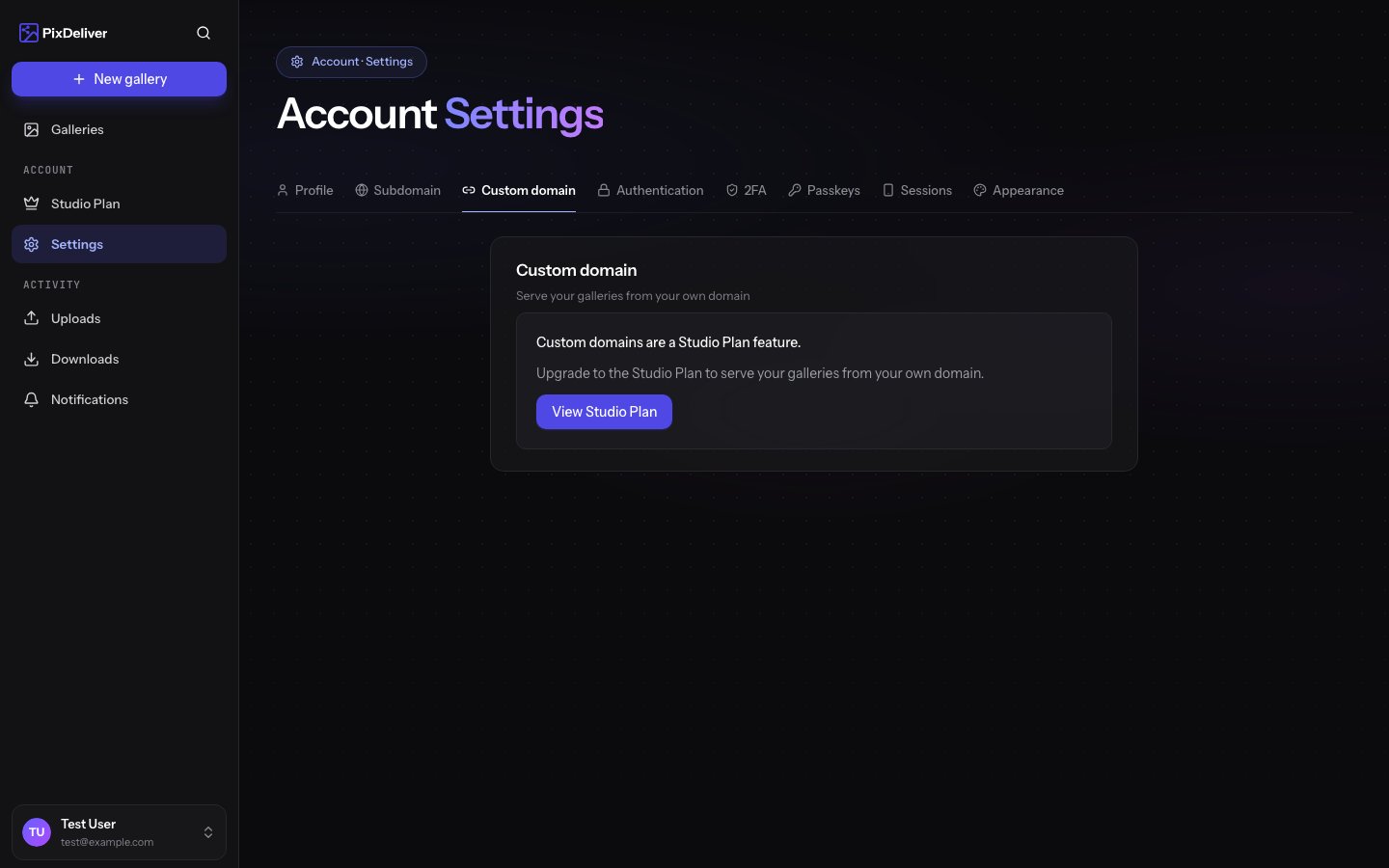
**A custom domain is a Studio plan feature.** Without an active [Studio plan](/en/payments/plans-and-pricing), you can still use the free [subdomain](/en/sharing/subdomains).
**What you need:**
* An active Studio plan
* A domain you have access to (a DNS management panel at your registrar or DNS provider)
***
## How to connect a custom domain
**Instructions:**
1. Go to **Settings** → **Custom domain**
2. In the **Domain** field, enter the address at which you want to share galleries (e.g. `photos.yourstudio.com`)
3. Click **Save** — a **DNS configuration** section will appear with the records to add
4. At your DNS provider, add the indicated records (see below)
5. Wait for verification — the status will change automatically to **Active**
### DNS records
Add the following at your DNS provider:
* A **CNAME record** pointing your domain to `cname.pixdeliver.com`
* A **TXT verification record** shown in the panel (confirms that the domain belongs to you)
```
photos.yourstudio.com CNAME cname.pixdeliver.com
```
After you add the records, PixDeliver checks the status itself every few seconds. DNS propagation can take from a few minutes to a few hours.
***
## Automatic DNS configuration (Domain Connect)
If your DNS provider supports **Domain Connect**, you do not have to add the records manually.
1. After entering the domain, you will see a green **Configure DNS automatically** section
2. Click the button to sign in to your DNS provider (e.g. Cloudflare, GoDaddy)
3. Sign in with the provider and confirm — the records will be added for you
4. You will return to the settings, and the domain will move to verification
If the provider does not support Domain Connect, use the manual configuration described above.
***
## Domain statuses
| Status | Meaning |
| ---------------- | -------------------------------------------------------- |
| **Pending** | Domain added, waiting for DNS records |
| **Verification** | Records detected, SSL certificate being issued |
| **Active** | The domain is working — galleries are available under it |
| **Error** | Verification failed — check the DNS records |
***
## Apex domains and Cloudflare
**Apex domains (`yourstudio.com`, without a prefix) often do not support a CNAME record.** Use a subdomain, e.g. `photos.yourstudio.com`. If you want to point the apex domain itself, and your provider supports CNAME flattening (so-called ANAME or ALIAS records), you can use that.
**If your domain is on Cloudflare**, set the record to **"DNS only"** (grey cloud), and **not** "proxied" (orange) — otherwise the connection will fail.
***
## The subdomain still works
Adding a custom domain **does not remove** your subdomain.
* The custom domain takes **priority** — galleries are served from the active custom domain
* The subdomain `yourstudio.pixdeliver.com` remains available as a **backup address**
**After the Studio plan expires**, galleries return to the free subdomain. To use your custom domain again, renew the Studio plan and connect the domain in the settings.
***
## Removing a custom domain
To stop using a custom domain, go to **Settings** → **Custom domain**, **clear the field**, and save. Galleries will return to the subdomain or the basic address.
***
## Troubleshooting
**Problem:** The status is stuck on "Pending". **Solution:** Check that the CNAME record points exactly to `cname.pixdeliver.com`. DNS propagation can take a few hours.
**Problem:** "Error" status. **Solution:** The cause is most often a missing record, a typo, or (on Cloudflare) "proxied" mode. Fix the records and wait for re-verification.
**Problem:** I do not see the **Custom domain** tab. **Solution:** The feature requires an active Studio plan. See [Plans and pricing](/en/payments/plans-and-pricing).
***
## Related topics
* [Custom subdomain](/en/sharing/subdomains) - A free `*.pixdeliver.com` address for every account
* [Plans and pricing](/en/payments/plans-and-pricing) - The Studio plan and its features
* [Account settings](/en/getting-started/account-settings) - Other profile settings
## Overview
A custom domain lets you share galleries at an address that belongs entirely to you — e.g. `gallery.yourstudio.com` or `photos.yourstudio.com` — instead of the `yourstudio.pixdeliver.com` subdomain.
**A custom domain is a Studio plan feature.** Without an active [Studio plan](/en/payments/plans-and-pricing), you can still use the free [subdomain](/en/sharing/subdomains).
**What you need:**
* An active Studio plan
* A domain you have access to (a DNS management panel at your registrar or DNS provider)
***
## How to connect a custom domain
**Instructions:**
1. Go to **Settings** → **Custom domain**
2. In the **Domain** field, enter the address at which you want to share galleries (e.g. `photos.yourstudio.com`)
3. Click **Save** — a **DNS configuration** section will appear with the records to add
4. At your DNS provider, add the indicated records (see below)
5. Wait for verification — the status will change automatically to **Active**
### DNS records
Add the following at your DNS provider:
* A **CNAME record** pointing your domain to `cname.pixdeliver.com`
* A **TXT verification record** shown in the panel (confirms that the domain belongs to you)
```
photos.yourstudio.com CNAME cname.pixdeliver.com
```
After you add the records, PixDeliver checks the status itself every few seconds. DNS propagation can take from a few minutes to a few hours.
***
## Automatic DNS configuration (Domain Connect)
If your DNS provider supports **Domain Connect**, you do not have to add the records manually.
1. After entering the domain, you will see a green **Configure DNS automatically** section
2. Click the button to sign in to your DNS provider (e.g. Cloudflare, GoDaddy)
3. Sign in with the provider and confirm — the records will be added for you
4. You will return to the settings, and the domain will move to verification
If the provider does not support Domain Connect, use the manual configuration described above.
***
## Domain statuses
| Status | Meaning |
| ---------------- | -------------------------------------------------------- |
| **Pending** | Domain added, waiting for DNS records |
| **Verification** | Records detected, SSL certificate being issued |
| **Active** | The domain is working — galleries are available under it |
| **Error** | Verification failed — check the DNS records |
***
## Apex domains and Cloudflare
**Apex domains (`yourstudio.com`, without a prefix) often do not support a CNAME record.** Use a subdomain, e.g. `photos.yourstudio.com`. If you want to point the apex domain itself, and your provider supports CNAME flattening (so-called ANAME or ALIAS records), you can use that.
**If your domain is on Cloudflare**, set the record to **"DNS only"** (grey cloud), and **not** "proxied" (orange) — otherwise the connection will fail.
***
## The subdomain still works
Adding a custom domain **does not remove** your subdomain.
* The custom domain takes **priority** — galleries are served from the active custom domain
* The subdomain `yourstudio.pixdeliver.com` remains available as a **backup address**
**After the Studio plan expires**, galleries return to the free subdomain. To use your custom domain again, renew the Studio plan and connect the domain in the settings.
***
## Removing a custom domain
To stop using a custom domain, go to **Settings** → **Custom domain**, **clear the field**, and save. Galleries will return to the subdomain or the basic address.
***
## Troubleshooting
**Problem:** The status is stuck on "Pending". **Solution:** Check that the CNAME record points exactly to `cname.pixdeliver.com`. DNS propagation can take a few hours.
**Problem:** "Error" status. **Solution:** The cause is most often a missing record, a typo, or (on Cloudflare) "proxied" mode. Fix the records and wait for re-verification.
**Problem:** I do not see the **Custom domain** tab. **Solution:** The feature requires an active Studio plan. See [Plans and pricing](/en/payments/plans-and-pricing).
***
## Related topics
* [Custom subdomain](/en/sharing/subdomains) - A free `*.pixdeliver.com` address for every account
* [Plans and pricing](/en/payments/plans-and-pricing) - The Studio plan and its features
* [Account settings](/en/getting-started/account-settings) - Other profile settings