

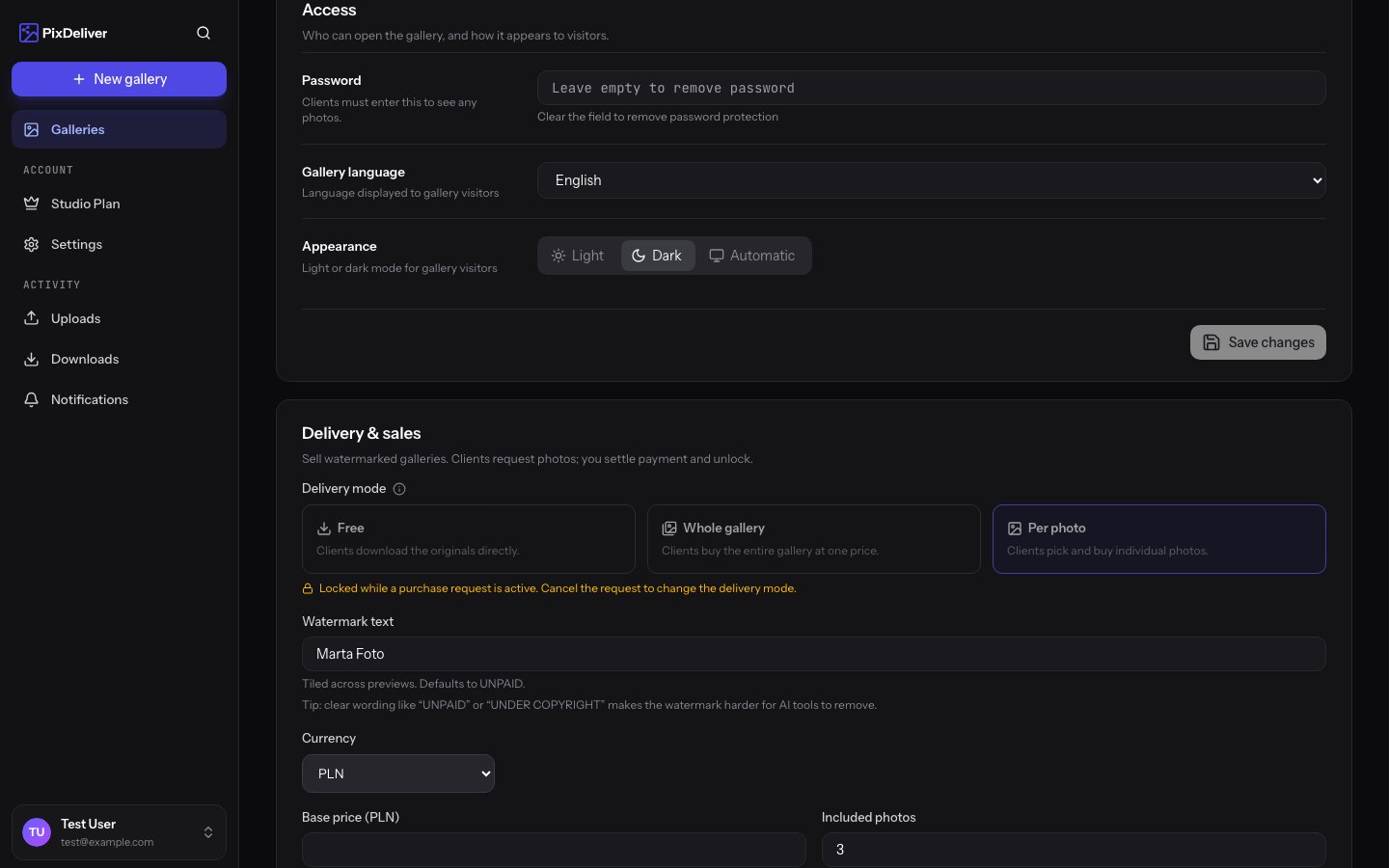
Overview
PixDeliver lets you deliver photos for free or sell them. You share each gallery in one of three delivery modes. In the paid modes, clients see watermarked previews, and you only unlock the clean originals once you receive payment.Payment happens outside the app. PixDeliver does not act as an intermediary in photo sales and does not charge any commission — you settle up with the client however you like (bank transfer, BLIK, cash, etc.) and then manually unlock the photos. For the full guide to the selling side, see Purchase requests and settlement.
The paid mode works within an active (paid) gallery. The fee for the gallery itself (per-gallery plan or the Studio plan) is separate from the price you set for clients to buy photos.
The three delivery modes
Free — clients download the originals
- Clients download full-resolution originals right away — no payment and no watermark
- No watermark, no lock, no purchase requests
- This is the default mode for a new gallery
Paid — buy the whole gallery
- Clients see watermarked previews and pay once to unlock and download every photo
- After unlocking, the client gets access to the originals — including photos you add after the sale
- You set a single price for the whole gallery (optional)
Paid — buy individual photos
- Clients see watermarked previews and choose which photos to buy themselves — paying for each one
- You can offer a few photos for free (a free-photo limit), and only the rest are charged
- After unlocking, only the purchased photos are visible on the public gallery page
How is this different from selections? Selection requests are for letting a client mark their favorite photos for free (for example, for an album). The paid modes are about selling — the client pays and you unlock the originals. These are two separate features.
How to set the delivery mode
You choose the mode when creating a gallery, and you can change it later in its settings. Instructions:- Open the gallery and go to the Settings tab
- Find the Delivery and sales section
- Choose one of the modes: Free, Paid — buy the whole gallery, or Paid — buy individual photos
- In the paid modes, fill in the pricing and (optionally) the watermark text
- Click Save changes
Watermark
In the paid modes, PixDeliver automatically applies a watermark to photo previews. In the free mode, no watermark is generated. Watermark text:- The Watermark text field in the Delivery and sales section (up to 40 characters)
- The default text is
UNPAID - The watermark is repeated across the entire preview
Sales pricing
You set the prices yourself in the Delivery and sales section. The currency (PLN or EUR) depends on the interface language — with the Polish interface, you enter prices in PLN.
Example (individual-photo mode): base price
50 PLN, 3 photos included, 10 PLN per photo. A client who picks 5 photos pays 50 PLN + 2 × 10 PLN = 70 PLN.
The price in effect at the moment a purchase request is submitted is saved with the request. Changing your pricing later does not affect requests that have already been submitted.
What the client sees
In a paid mode, until the photos are unlocked:- Watermarked previews are shown instead of the originals
- The right-click menu and dragging photos to the desktop are disabled
- In individual-photo mode, the client selects photos, sees a price summary, and then submits a purchase request
- In whole-gallery mode, the client uses the buy-the-whole-gallery button
Best practices
✅ Recommended:- Set the delivery mode before sharing the gallery with the client
- In individual-photo mode, consider including a few photos “in the price” to encourage selection
- Use clear watermark text (
UNPAID, your studio name) - Agree on a payment method with the client before you send the link
- Changing the mode while a purchase request is active (it’s locked)
- Sharing originals through another channel before settlement (this bypasses the sales lock)
Troubleshooting
Problem: I can’t change the delivery mode. Solution: Check whether the gallery has an active purchase request — the mode is locked while one exists. Settle or cancel the request in the Purchase requests tab. Problem: The client still sees a watermark after paying. Solution: Unlocking is manual — once you receive payment, click Accept & unlock in the Purchase requests tab. After unlocking, the photos are reprocessed (they may briefly show a “processing” status). Problem: Photos added after the sale have a watermark. Solution: In whole-gallery mode, new photos are unlocked automatically. In individual-photo mode, the sale only covers the specific photos that were chosen.Related topics
- Purchase requests and settlement - How to accept payments and unlock photos
- Buying photos (for the client) - What the purchase looks like from the client’s side
- Gallery settings - Where to find the Delivery and sales section
- Plans and pricing - Activating the gallery in which you enable sales