

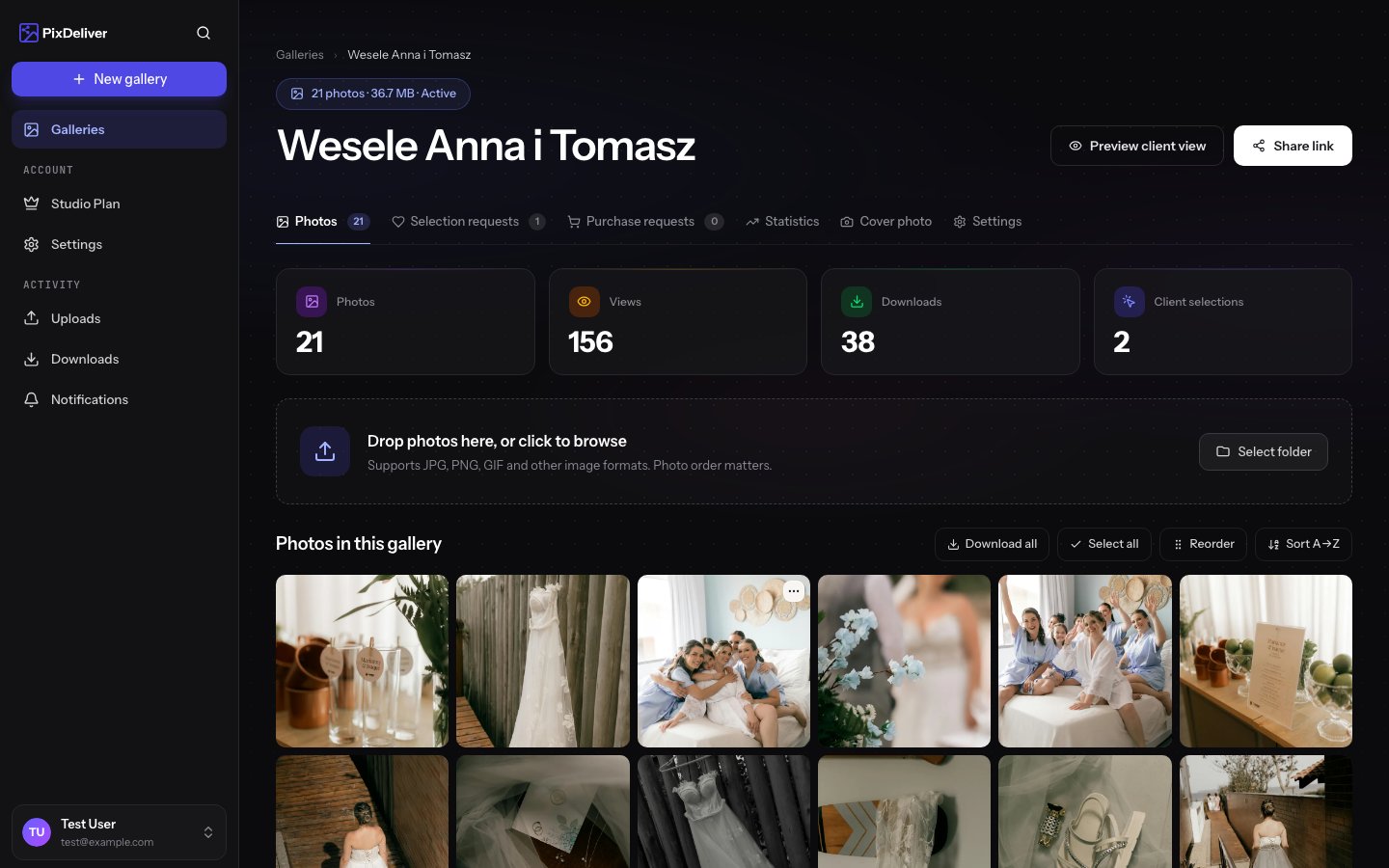
Overview
Every active gallery in PixDeliver has its own unique link that you can share with clients. The link leads to a professional gallery page where clients can browse and download photos. The system offers two link formats - a basic one and one with a subdomain. Key information:- The link only works for active (paid) galleries
- You can use the basic link or the one with a subdomain
- The link can be shared by any method (email, SMS, messenger)
- An unlimited number of people can open the gallery
- The link is valid for a full year (or until the gallery expires)
Link formats
1. Basic link (root domain)
https://pixdeliver.com/g/wesele-anna-tomaszhttps://pixdeliver.com/g/sesja-rodzinna-kowalskichhttps://pixdeliver.com/g/event-firmowy-2024
- Always works, even without a subdomain
- Short and simple
- Universal for all users
- Does not include your brand/name
- Less professional
- Every photographer uses the same root domain
2. Link with a subdomain
https://jan-kowalski.pixdeliver.com/wesele-anna-tomaszhttps://fotografia-marek.pixdeliver.com/sesja-rodzinnahttps://studio-light.pixdeliver.com/event-firmowy
- ✨ Professional look
- 🎨 Includes your name/brand
- 📈 Builds recognition
- 🌟 Easier for clients to remember
- 💼 Looks more personal
- Requires setting up a subdomain in your profile beforehand
- Slightly longer link
How to copy a gallery link
Method 1: From the gallery panel
Instructions:- Sign in to PixDeliver
- Open the gallery you want
- Find the Copy public link button
- Click the button
- The link is copied to your clipboard
Method 2: Copy manually from the address bar
Instructions:- Open the gallery as a client (Gallery preview)
- Select the URL in the browser’s address bar
- Right-click → Copy
- Or use the Ctrl+C (Windows) / Cmd+C (Mac) shortcut
How to send the link to clients
SMS
Perfect for quick sharing. Sample message:Messenger / WhatsApp
Sample message:Sharing the link with multiple people
The gallery link can be opened by an unlimited number of people. Scenarios:- Wedding - send the link to the newlyweds, and they can share it with their guests
- Corporate event - send the link to the organizer, who will pass it on to the participants
- Family session - the organizers can share the link with the whole family
No limits: An unlimited number of people can open and browse the gallery. There is no limit on views or downloads.
What clients see after opening the link
Gallery without a password
- The client clicks the link
- They immediately see the gallery page with:
- The gallery name
- The cover photo
- A description (if added)
- A grid of photo thumbnails
- A “Download the whole gallery” button
Gallery with a password
- The client clicks the link
- They see a screen prompting for the password:
- A field to enter the password
- An “Open gallery” button
- After entering the correct password:
- The gallery opens
- The password is remembered in the browser
- They do not have to enter it again (until the browser is closed)
Changing the link
Changing the slug (URL)
You can change the gallery slug in the settings, but: Instructions:- Go to Gallery settings
- Change the Slug field
- Save the changes
- Copy the new link
- Send it to clients again
Changing the subdomain
Changing the subdomain affects all of your galleries:Tracking access
PixDeliver automatically tracks who visits a gallery and when. What is tracked:- Number of gallery views
- Unique visitors
- Date and time of access
- Source of access (basic link vs subdomain)
- Number of downloads (whole gallery and individual photos)
- Open the gallery in the panel
- Click Statistics or View statistics
- You will see the full analytics data
Go to the Gallery statistics section to learn more about analytics.
Link security
Slug randomness
Although you can choose your own slug, it is a good idea to add an element of randomness for greater security: Examples:- ✅
wesele-ania-xk4mp(slug + random characters) - ✅
sesja-kowalskich-2024-a8k(slug + year + code) - ❌
wesele-ania(too predictable) - ❌
test(too generic)
HTTPS
All PixDeliver links use an encrypted HTTPS connection:- ✅ Secure data transfer
- ✅ Protection against eavesdropping
- ✅ SSL certificate
Link expiration
The link stops working in the following situations:1. The gallery has expired
A year after the gallery was paid for (or after the Studio plan expires), and without renewing it, clients who open the link see a page informing them that the gallery has expired — asking them to contact the photographer. Solution: Renew the gallery (Gallery renewal) or renew your Studio plan.2. The gallery was deleted
If you deleted the gallery, the link stops working immediately.3. Slug change
After changing the slug, the old link does not work (with no redirect).Tips and best practices
✅ Recommended:- Use the link with a subdomain for a professional image
- Add instructions to the message with the link
- Include the password (if set)
- Inform clients about the gallery’s validity (1 year)
- Send the link only after activating the gallery
- Check the link in the preview before sending
- Keep a copy of the links you send (for yourself)
- Add emoji to the message for a better impression 📸✨
- Changing the slug after sending the link to clients
- Posting links publicly (if the gallery is private)
- Sending a link to an unpaid gallery
- Sending a link without the password (if one is required)
- Using very short, predictable slugs without a password
- Ignoring messages about expiring galleries
Troubleshooting
Problem: The client cannot open the link. Solution:- Check whether the gallery is active (paid)
- Check whether the link was copied correctly (without being cut off)
- Make sure the gallery has not expired
- Check whether you changed the slug after sending the link
- Send the link again (copy a fresh one from the panel)
- Check the gallery settings - is a password set?
- If so, send the password to the client
- If there should not be a password, remove it in the gallery settings
- Check whether the photos were processed correctly
- Check whether there is a message about failed conversions
- Refresh the page (Ctrl+F5)
- Try a different browser
- Check whether the photos are visible in the management panel
- Copy the link again from the panel
- Send it to the client once more
- Keep copies of the links you send in your emails
Related topics
- Password protection - How to secure a gallery with a password
- Custom subdomain - Full guide to subdomains
- Client guide - How clients use galleries
- Account settings - Set up your subdomain and other preferences