

Overview
Password protection is an extra layer of security for galleries. When a gallery is password-protected, anyone who wants to view it must first enter the correct password. This is an ideal solution for sessions that require more privacy. Key information:- A password can be added when creating a gallery or later
- You can change or remove the password at any time
- One password for the whole gallery (you cannot set different passwords for different people)
- Clients only have to enter the password once (it is remembered in the browser)
When to use password protection?
✅ Recommended for:
Intimate and sensitive sessions:- Boudoir sessions
- Maternity sessions
- Artistic nude sessions
- Private personal sessions
- Weddings (access for guests only)
- Birthday parties
- Christenings, communions
- Family events
- Corporate sessions (before publication)
- Projects in progress
- Photos containing sensitive data
- Client preview (before final approval)
- Temporary galleries for approval
- Showcase galleries for selected clients
- Galleries for photo selection
❌ Not needed for:
- Open-access outdoor sessions
- Event photos intended for publication
- Galleries that should be easily accessible to a wide group
- When you care about maximum convenience for clients
The trade-off: A password increases security but requires an extra step from clients. Consider whether the added privacy is worth the small inconvenience.
Adding a password to a gallery
While creating a gallery
Instructions:- While creating a new gallery, select the Protect the gallery with a password option
- In the Password field, enter your chosen password
- Confirm the password in the Confirm password field
- Click Create gallery
To an existing gallery
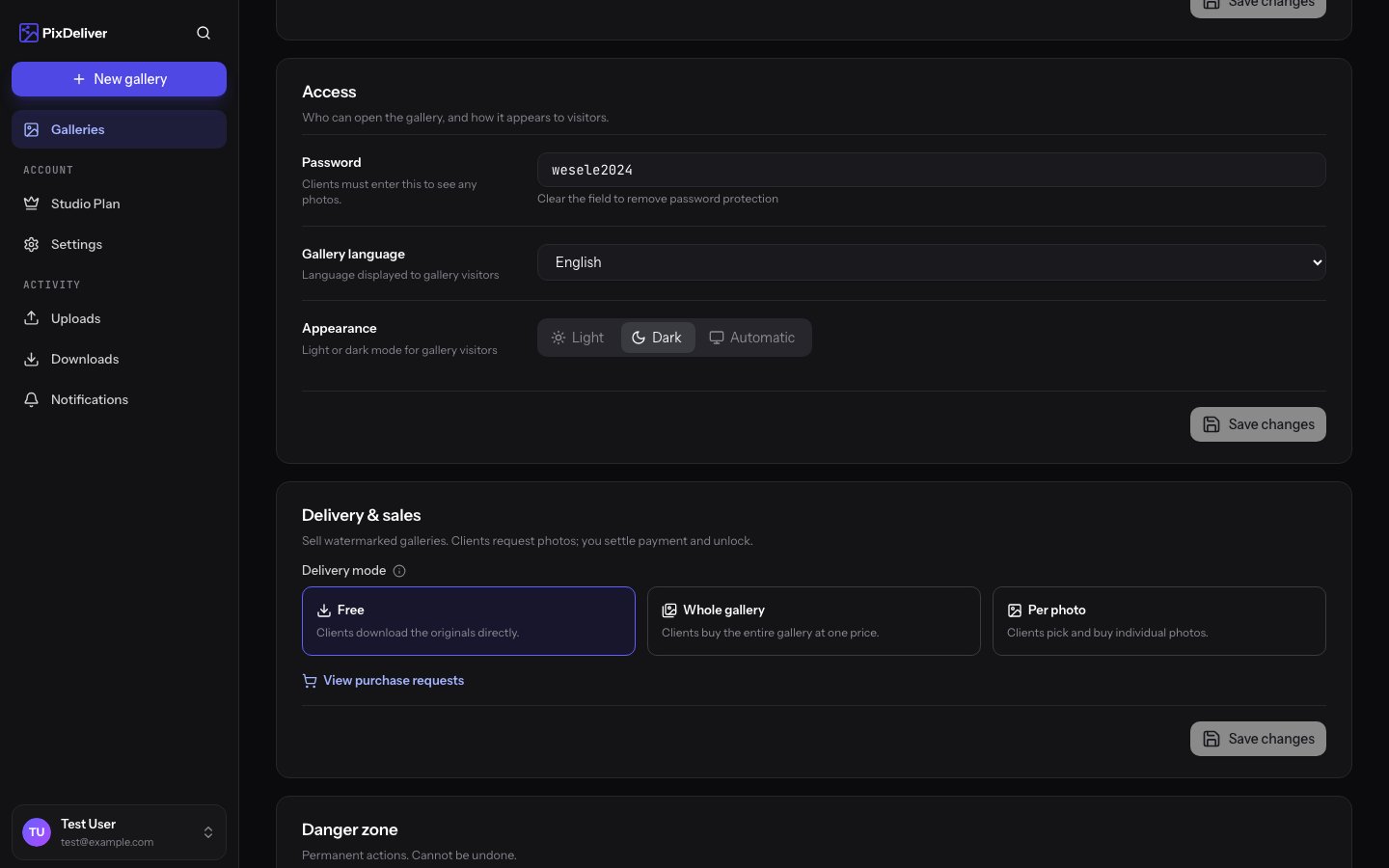
You can add a password to a gallery that already exists. Instructions:- Open the gallery in the management panel
- Go to Gallery settings
- Find the Security section
- Select Protect the gallery with a password
- Enter the password
- Confirm the password
- Click Save changes
Changing the password
You can change the gallery password at any time. Instructions:- Go to Gallery settings
- In the Security section, you will see the current password
- Enter a new password in the Password field
- Confirm the new password
- Click Save changes
- The old password stops working immediately
- Clients must use the new password
- People who have already opened the gallery must enter the password again the next time they open it
Removing the password
If you want to make the gallery publicly accessible (without a password): Instructions:- Go to Gallery settings
- In the Security section, deselect Protect the gallery with a password
- Click Save changes
Password requirements
Length and characters
- Minimum: 4 characters
- Maximum: 50 characters
- Allowed: Letters (Polish characters are OK), digits, special characters, spaces
- Case: Matters (
Haslo123≠haslo123)
Password examples
Weak passwords (DO NOT use):- ❌
1234- too simple - ❌
haslo- too obvious - ❌
password- commonly used - ❌
ania- too short, easy to guess
- ✅
wesele2024ania- long, descriptive - ✅
SesjaRodzinna!2024- upper/lowercase, special character - ✅
MojePierwszeWesele- easy to remember, hard to guess - ✅
MalgosiaDziecko&2024- a combination of words and characters
- ✅
x9Kp#mWq2@aL- random characters (generate them in a password manager) - ✅
SesjaIntymna!Kasi2024#prywatne- long, with various elements
How to share the password with clients
In the same message as the link
The most common method:Separately (for greater security)
Email with the link:- Greater security (different communication channels)
- Even if someone intercepts one channel, they will not have full access
- Recommended for very sensitive sessions
Phone (highest security)
For extremely private sessions:- Send the link by email/SMS
- Share the password over the phone
- Do not save the password in any electronic form (the client should not either)
How clients use the password
Opening the gallery for the first time
- The client clicks the gallery link
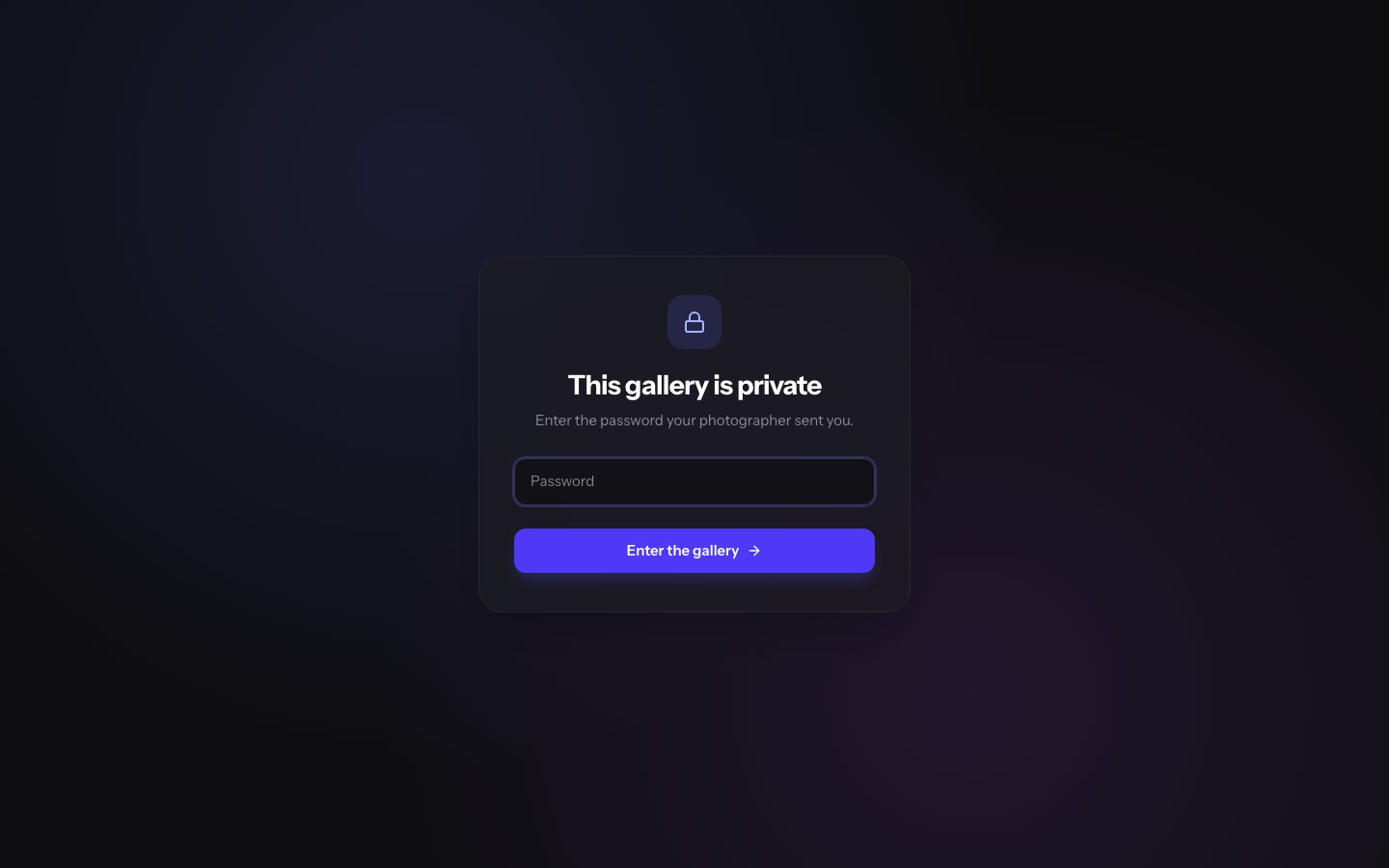
- They see a screen with a password form:
- The client enters the password
- They click Open gallery
- If the password is correct - the gallery opens
- If it is wrong - they see an error message
Remembering the password
After entering the correct password:- The browser remembers the password
- The client does not have to enter it again in the same browser
- The password is valid until the browser is closed or the cache is cleared
- The password is entered only once
- On subsequent visits, the gallery opens automatically (in the same browser)
- On another device, they must enter the password again
What happens with a wrong password
After entering a wrong password
The client sees a message:- A typo in the password
- Mixed-up letter case (
Haslovshaslo) - Spaces at the start/end of the password
- Copying the password with an extra character
- The photographer changed the password
No attempt limit
The system does not block access after wrong attempts:- The client can try entering the password multiple times
- There is no risk of “locking out” the gallery
- Encourage clients to copy the password (instead of retyping it)
Managing passwords for multiple galleries
Password strategies
Option 1: A unique password for each gallery ✅ Pros:- Maximum security
- If one password leaks, the other galleries are safe
- You can use descriptive passwords (e.g.
weseleniemiec2024,sesjamaja2024)
- Harder to manage
- You have to remember many passwords
- Clients may mix up passwords for different galleries
- Easy for the client to remember
- Simpler communication
- The client can access multiple galleries with the same password
- Less security
- If the password leaks, all galleries are at risk
Storing passwords
Where to save passwords:- ✅ A password manager (1Password, Bitwarden, LastPass)
- ✅ A spreadsheet (Excel, Google Sheets) with password protection
- ✅ A notes app on your phone with encryption
- ✅ In a CRM system (if you use one)
- ❌ A plain text file (unsecured)
- ❌ A piece of paper (easy to lose)
Password security
Good practices
✅ Recommended:- Use different passwords for different galleries
- Do not use passwords like
1234,haslo,password - Add digits and special characters for greater privacy
- Share the password securely (do not post it publicly)
- Change the password if you suspect a leak
- Use stronger passwords for sensitive sessions
- Using the same password for all galleries
- Posting the password on social media
- Sending the password in an unencrypted email to multiple recipients
- Leaving the password in your email signature
- Using obvious passwords (the client’s date of birth, etc.)
Password leak
If you suspect that a password has leaked: Instructions:- Immediately change the password in the gallery settings
- Inform the client about the new password
- Consider adding random characters to the new password
- Check the statistics - are there any unusual views?
Tips and best practices
✅ Recommended:- Add a password for intimate and sensitive sessions
- Use descriptive, easy-to-remember passwords
- Share the password in the same message as the link (for convenience)
- Save passwords in a secure place
- Tell clients that the password is one-time (entered only once)
- Test the password yourself before sending it to clients
- Use unique passwords for each gallery
- Overusing passwords (not every gallery needs one)
- Overly complicated passwords (clients will have problems)
- Changing the password without informing clients
- Posting the password publicly
- Using passwords with characters that are hard to type on a phone
Troubleshooting
Problem: The client says the password does not work Solution:- Check the current password in the gallery settings
- Copy it and send it to the client again
- Make sure the client is not adding spaces before/after the password
- Check the letter case (the client may have Caps Lock on)
- Ask the client to copy the password instead of retyping it
- Go to Gallery settings
- In the Security section, you will see the current password
- Copy it or change it to a new one
- This is normal if the client:
- Clears the browser cache
- Uses incognito mode
- Opens the gallery on different devices
- Explain to the client that it is a matter of security
- Refresh the settings page
- Deselect the “Protect the gallery with a password” option
- Save the changes
- If the problem persists, clear the browser cache
Frequently asked questions
Can I set different passwords for different photos in a gallery? No. The password protects the whole gallery. You cannot set different passwords for different photos. Do clients see the password after opening the gallery? No. The password is only used to authorize access. It is not displayed in the gallery. Can I see who entered the correct password? No. The system does not store information about who specifically entered the password. You only see view statistics. Does the password expire? No. The password works for the entire validity period of the gallery (1 year or until changed). Does letter case matter? Yes!Haslo is a different password than haslo. Make sure clients are aware of letter case.
Can I remove the password after sharing the gallery?
Yes, you can remove or change the password at any time in the gallery settings.
Related topics
- Public links - How to share galleries
- Gallery settings - Managing the password
- Client guide - How clients enter the password